
Choose Unsplash in the post window
- On the Publish page, press “Create post”.
- In the toolbar under the text field, click the small arrow next to the media tool. It opens the “Other media tools” menu.
- Pick Unsplash from the menu.
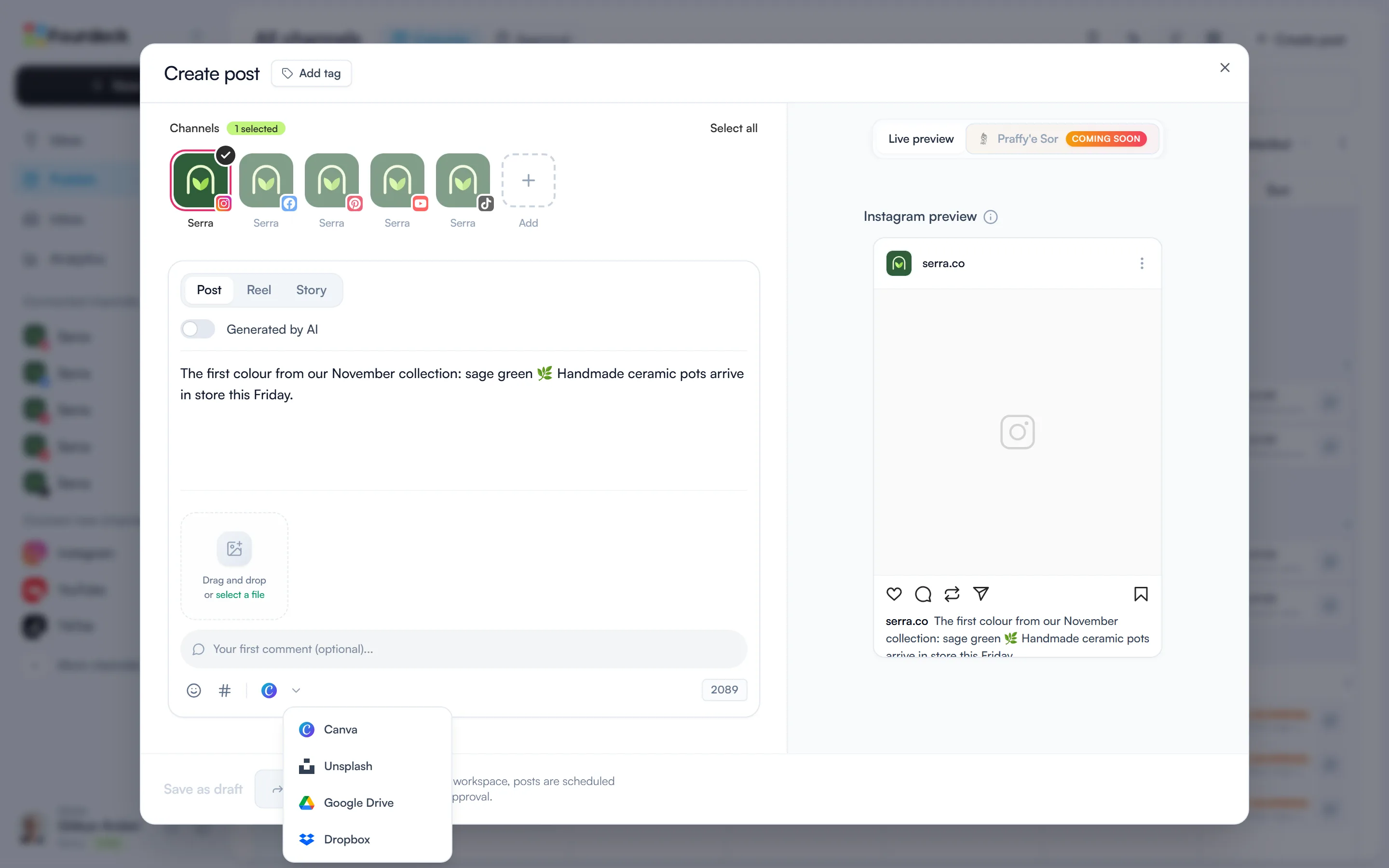
There's no account to connect; the “Pick an image from Unsplash” window opens straight away. Your choice is remembered, so the toolbar shows the Unsplash icon from then on.
Search and add a photo
When the window opens you see a selection of photos. Type what you're looking for in the search box and press Enter; the results appear in the same window.
Click a photo and it's added to the post's media and the window closes. To add another photo, click the icon again.
Photographer credit is added for you
For photos shared on social media, Unsplash asks for the photographer's name in the post itself, because people who see the post never see Fourdeck. So when Fourdeck publishes, it adds a “Photo by … on Unsplash” line to the end of the post text.
- On Instagram, if the photographer's Instagram username is known, the credit uses @username and tags the photographer.
- On other channels the photographer's name is used.
- Several photos by the same photographer share one line; different photographers get separate lines.
- If the same credit line is already in the text, it isn't added twice.
Frequently asked questions
Do I need to connect an account for Unsplash?
No. Profile settings → Tools shows “No connection needed” next to Unsplash; you search and add photos straight from the post window.
Do I have to write the photographer credit myself?
No. When it publishes, Fourdeck adds a “Photo by … on Unsplash” line to the end of the post text. On Instagram it tags the photographer if their username is known.
If I write the credit myself, will it appear twice?
Not if it matches the line Fourdeck would write exactly. If you worded it differently, Fourdeck still adds its own line.