Fourdeck and Canva: from design to post without downloading files
· 3 min read
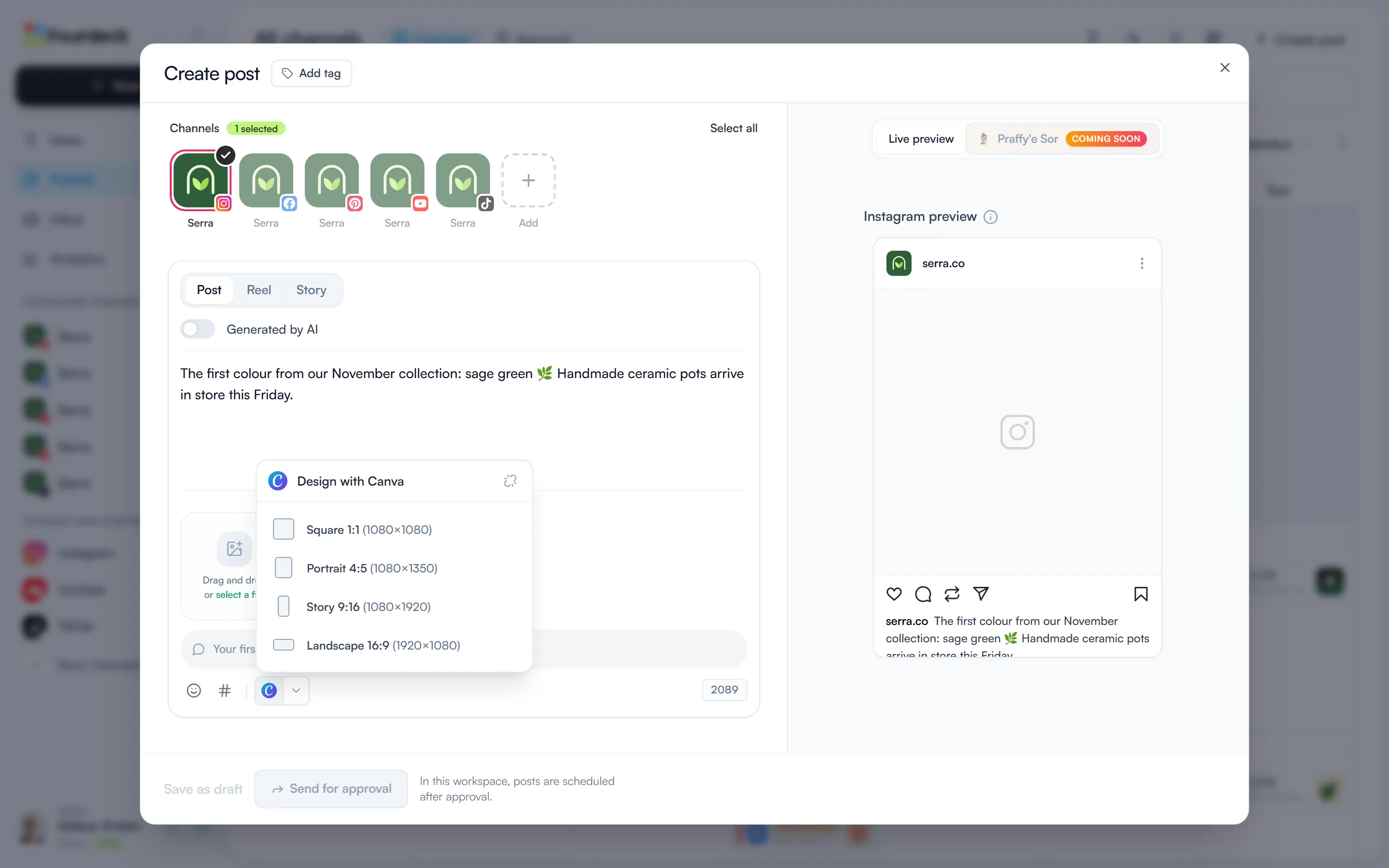
Finishing a design in Canva, downloading the PNG, then finding that file again to upload it to a post is a small job you repeat every day. With Fourdeck's Canva integration you start the design from the post window. Canva opens with a blank design in the right size, and when you finish and come back to Fourdeck, the design is already in your post's media.
Connect your Canva account
- On the Publish page, press “Create post”.
- In the toolbar under the text field, click the Canva icon.
- If your account isn't connected yet, the menu shows a “Connect Canva” button. Sign in to Canva in the window that opens and allow Fourdeck access.
The connection is personal: each team member connects their own Canva account and brings in their own designs. You only connect once; after that the menu opens straight to the design sizes.
Start a design from the post window
Click the Canva icon and the “Design with Canva” menu offers four sizes. Pick the one that fits where the post is going:
- Square 1:1 (1080×1080): Instagram and Facebook feed posts.
- Portrait 4:5 (1080×1350): an upright Instagram post that takes up more of the feed.
- Story 9:16 (1080×1920): Stories and Reels.
- Landscape 16:9 (1920×1080): YouTube and other wide images.
When you pick a size, Canva opens in a new window with a blank design in that size. Build the design in Canva as you normally would.
Bring the design into your post
When the design is ready, use the button in the Canva editor that takes you back to Fourdeck. Fourdeck exports the design as a PNG and adds it to the post you have open, so there's nothing to download. Then schedule the post or send it for approval as usual.
Manage the connection
To see your connected tools, click your name in the bottom-left corner, open “Profile settings” and switch to the “Tools” tab. The Canva row shows the connected account's name and a “Connected” label. “Disconnect” removes Fourdeck's access to your Canva account; designs you've already added to posts stay where they are.
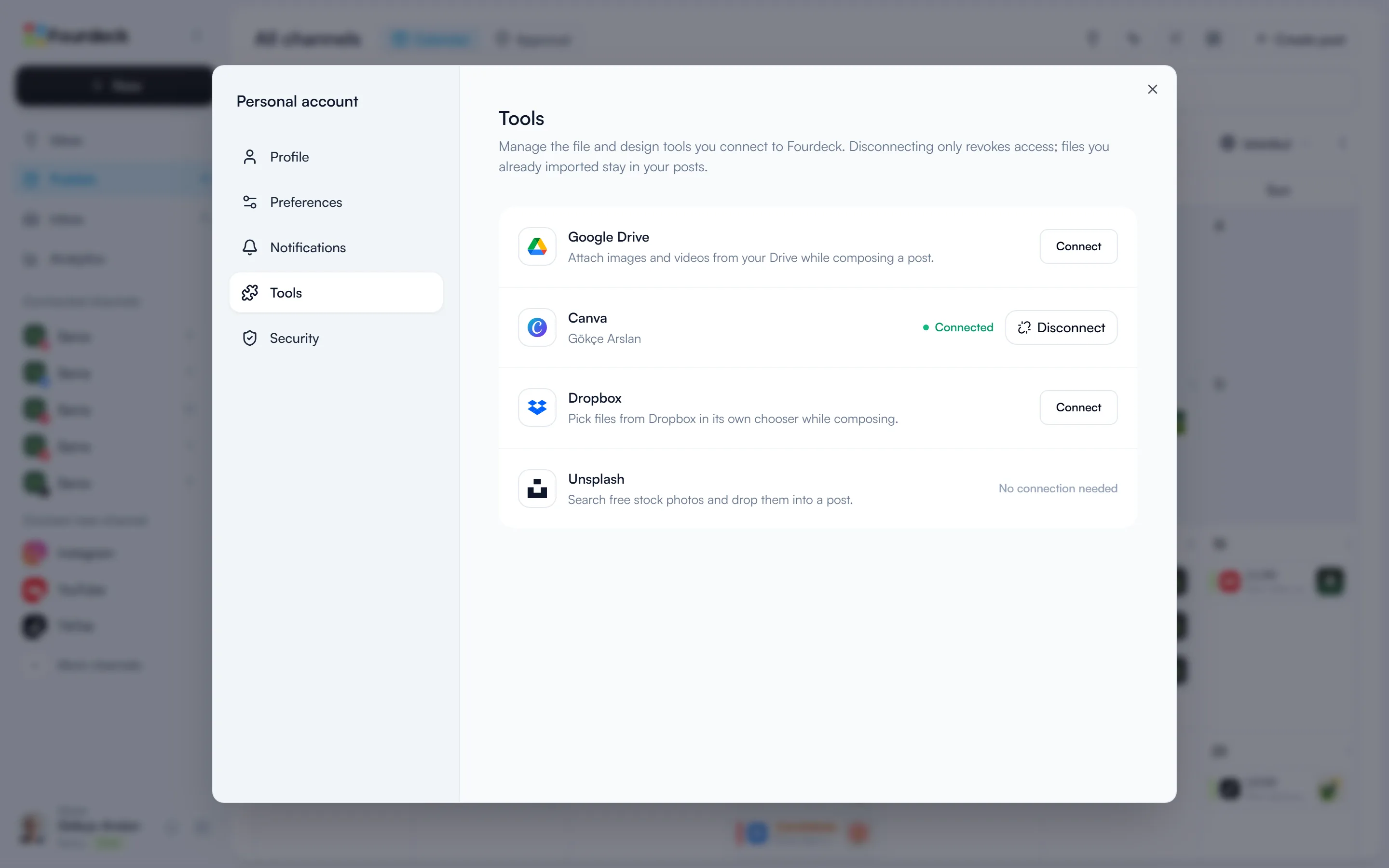
You can connect Google Drive and Dropbox from the same tab. Unsplash needs no connection: you search free stock photos and add them straight from the post window.