The Fourdeck inbox: comments and messages in one place
· 4 min read
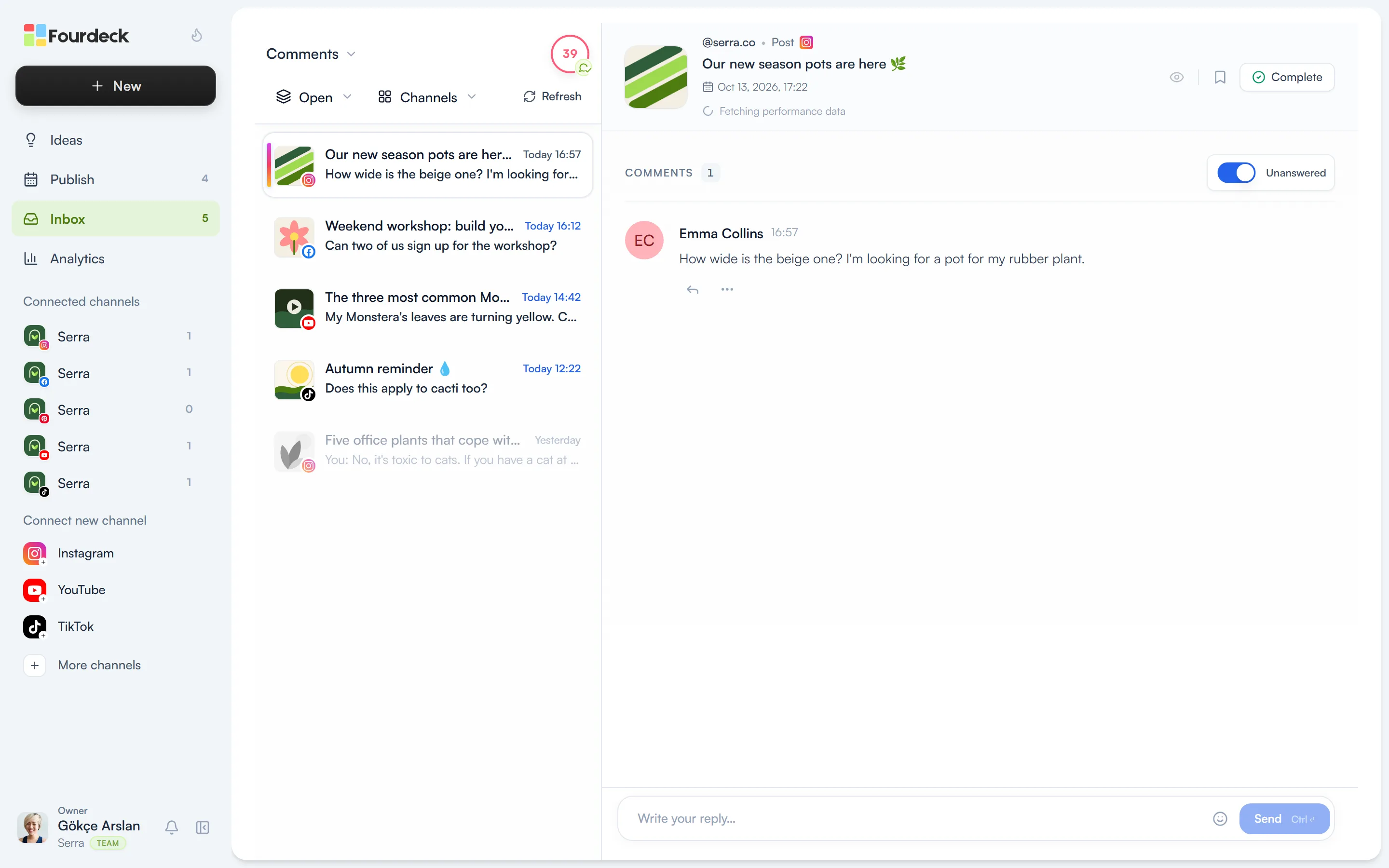
The inbox gathers the comments and direct messages your connected channels receive into one list. Without opening each app, you see unanswered comments, reply to them and close the conversation. This guide covers the comments and messages screens, the filters and what you can do on each channel.
Which channels are supported?
| Channel | Comments | Direct messages |
|---|---|---|
| Reply, hide, delete | Read and reply | |
| Reply, like, hide, delete | Read and reply | |
| YouTube | Reply, hide, delete | Not available |
| TikTok | Reply | Not available |
What you can do depends on what each platform allows; if a channel doesn't support an action, Fourdeck doesn't show that button. Pinterest comments don't come into the inbox. You need the Inbox permission to use it.
Comments
Open the Inbox from the left menu. Each post that has received comments is a row in the list, showing the post image, its title and the latest comment. Unread rows are in bold. Click a row and the post details and comments open on the right.
- Reply with the arrow under a comment; the reply box sits at the bottom.
- The three-dot menu holds the other actions the channel supports, such as hiding or deleting.
- With “Unanswered” on, only comments you haven't replied to yet are shown.
- When you're done, close the conversation with “Complete”. The bookmark icon moves it to Later.
Direct messages
Click the “Comments” heading above the list and switch to “Direct messages”. Your Instagram and Facebook messages are listed the same way. Type a reply to answer, and you can attach an image too.
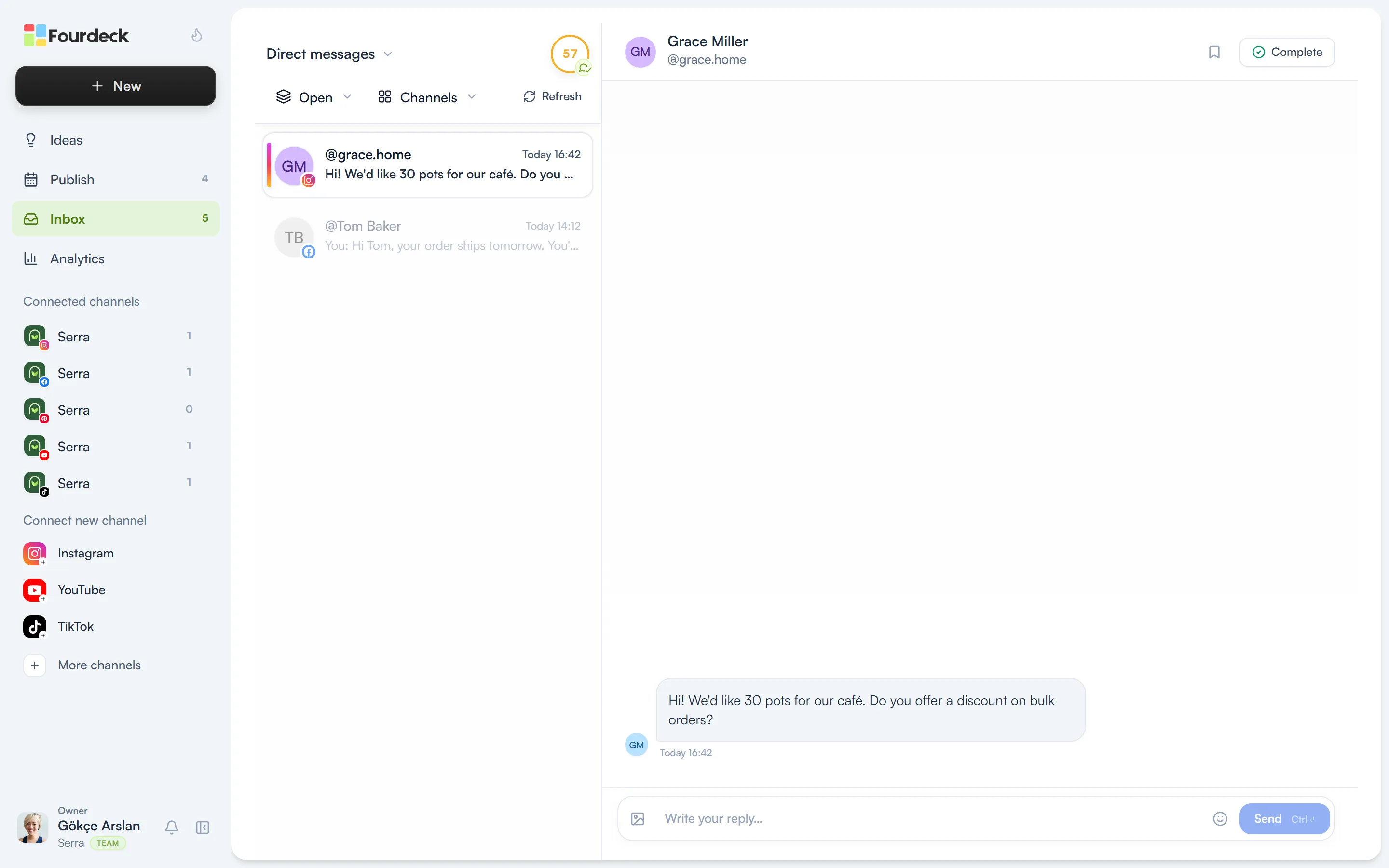
Filters and statuses
Two filters above the list choose the conversations you work on:
- Status: Open conversations are the ones waiting for a reply. The ones you moved to Later and the Done ones are listed separately.
- Channels: only conversations from the channels you pick are shown.
The list refreshes itself at regular intervals; the time until the next refresh is shown next to the filters.