
Choose Google Drive in the post window
- On the Publish page, press “Create post”.
- In the toolbar under the text field, click the small arrow next to the media tool. It opens the “Other media tools” menu.
- Pick Google Drive from the menu.
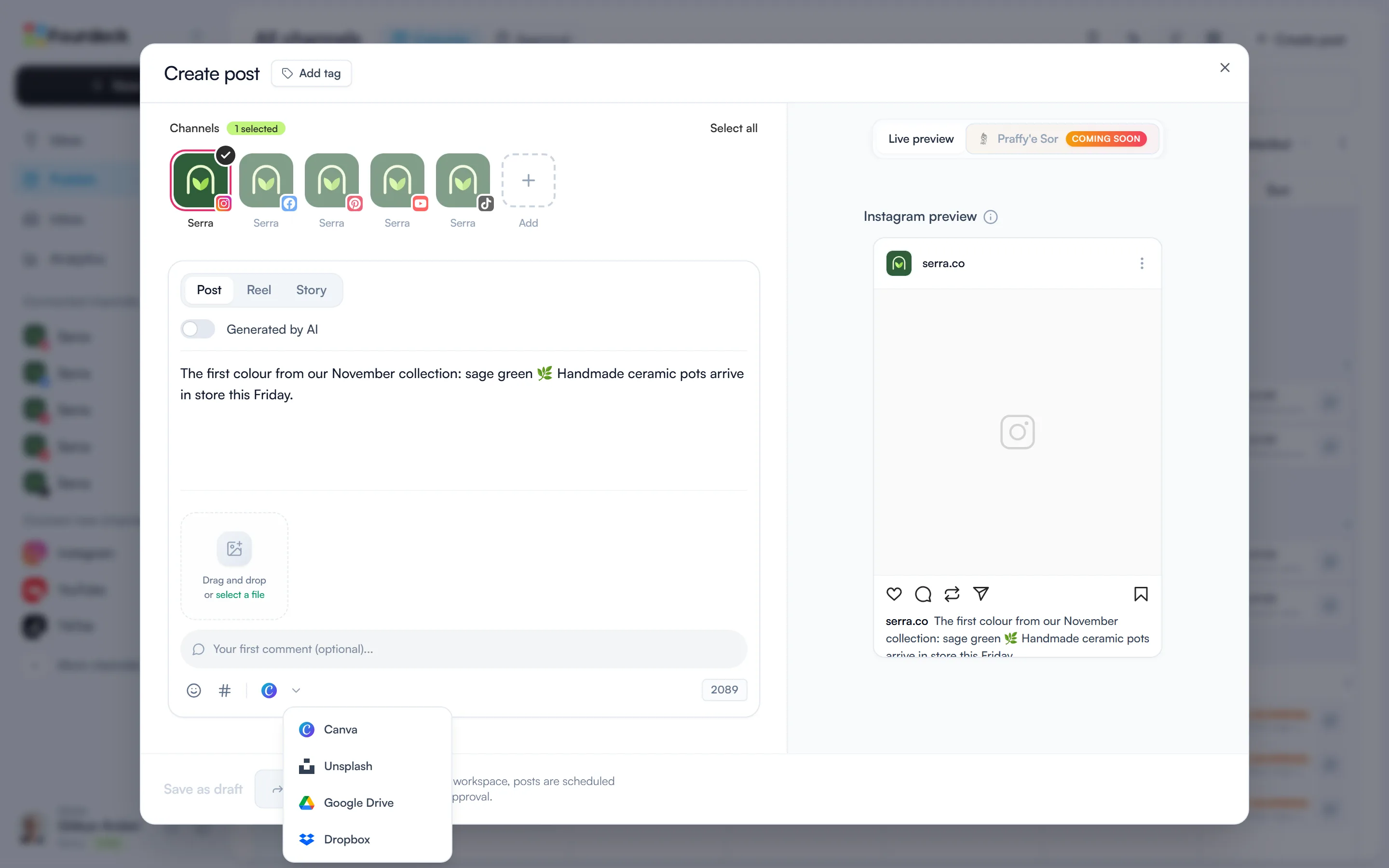
Your choice is remembered: from then on the toolbar shows the Google Drive icon instead of Canva. Use the same arrow to switch to another tool.
Connect your Drive account
If your account isn't connected yet, clicking the Google Drive icon shows a “Connect Google Drive” button. Choose your account in the Google window that opens and allow Fourdeck access.
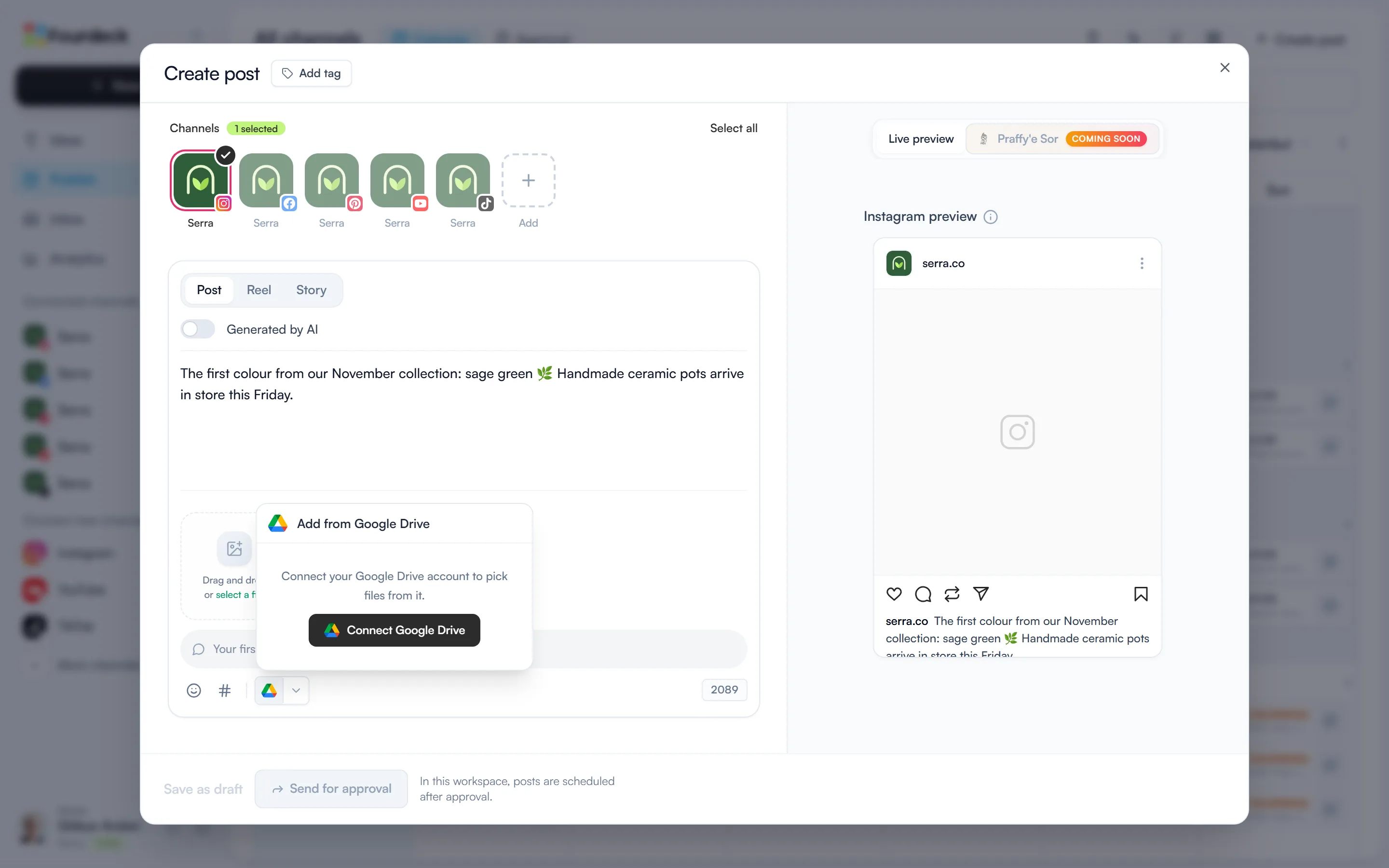
Once you're connected, Google's file picker opens on its own. The connection is personal: each team member connects their own Drive account.
Pick a file and add it to the post
The picker is Google's own window, so you browse your folders the way you do in Drive and select the file. It lists these types:
- Images: PNG, JPEG and WebP.
- Video: MP4 and MOV.
- Documents: PDF.
While the file is being imported, a placeholder shows in the post; the file itself replaces it when the import finishes. Then schedule the post or send it for approval as usual.
Manage the connection
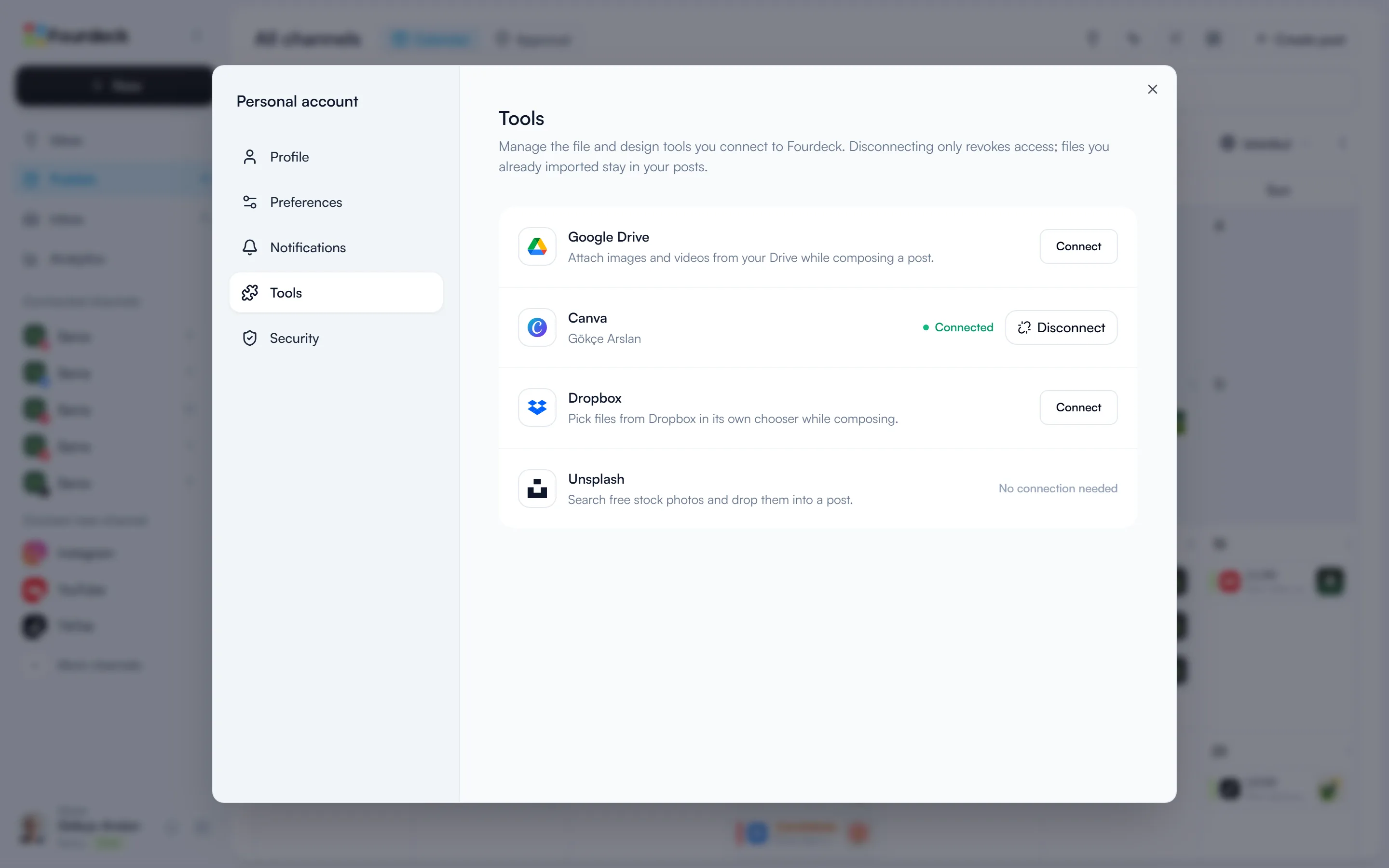
Click your name in the bottom-left corner, open “Profile settings” and switch to the “Tools” tab. The Google Drive row shows the connected account; “Disconnect” removes Fourdeck's access to Drive. Files you've already added to posts stay where they are.
Frequently asked questions
Can Fourdeck see my whole Google Drive?
No. You select the file in Google's own picker, and Fourdeck can only access that file. The rest of your Drive stays closed to it.
Which files can I add from Drive?
PNG, JPEG and WebP images, MP4 and MOV videos, and PDF documents.
If I disconnect Drive, are files removed from my posts?
No. Disconnecting only removes Fourdeck's access to Drive. Files you've already added to posts stay where they are.