Connecting channels to Fourdeck: Instagram, Facebook, YouTube, TikTok and Pinterest
· 4 min read
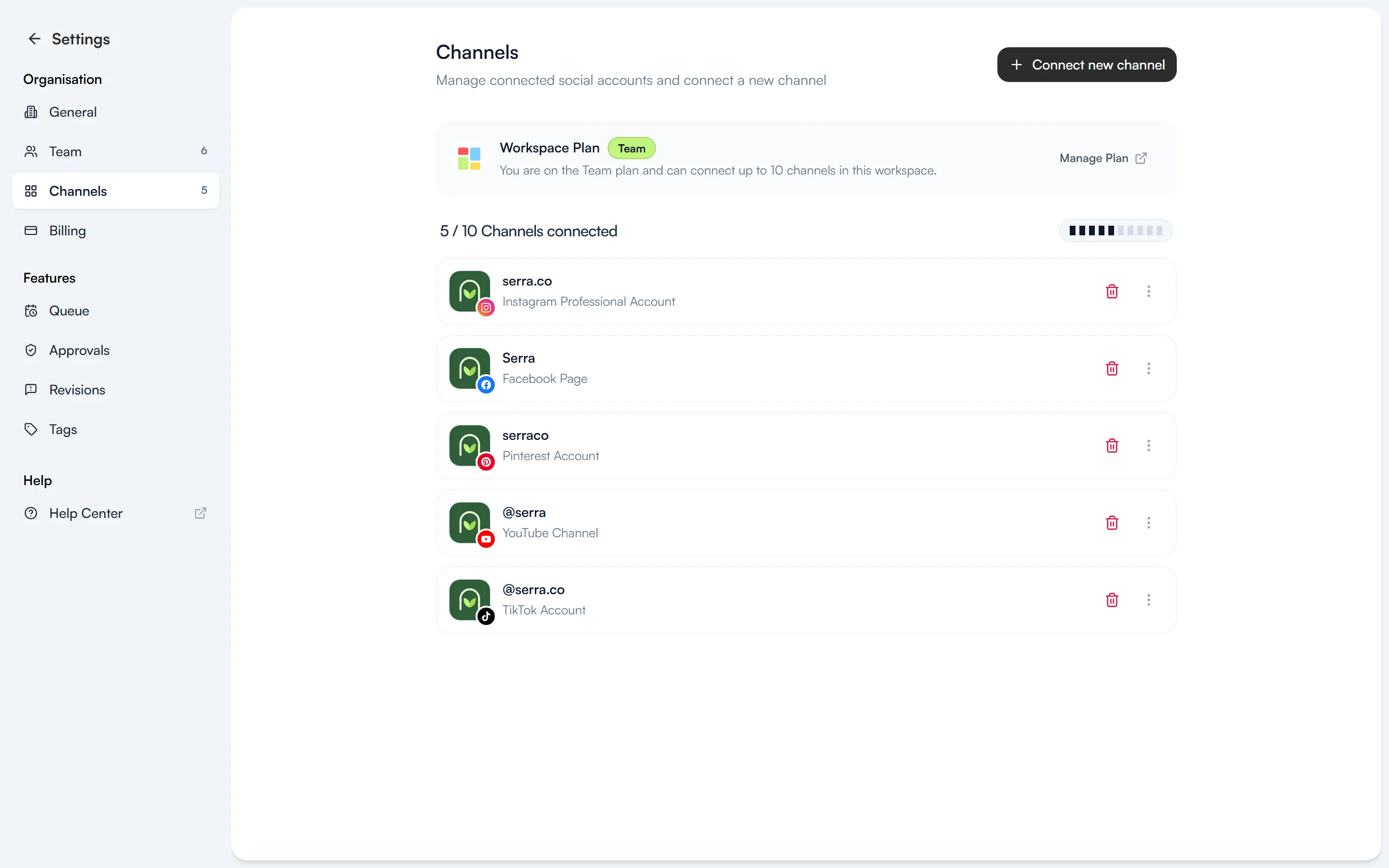
To schedule posts in Fourdeck, you first connect the accounts you publish to. Each connection goes through the platform's own sign-in and permission screen, so Fourdeck never sees your password. This guide covers connecting a channel, what you can publish on each one and how to manage the connection.
Which channels can you connect?
| Channel | What you can publish |
|---|---|
| Posts, Reels and Stories. Up to 20 carousel media items, with positioned people tags on images. | |
| Page posts, Reels and Stories. Albums with up to ten photos and a prepared first comment. | |
| YouTube | Shorts uploads with a title, description, category, visibility and custom thumbnail. |
| TikTok | Video uploads with a cover frame selected from the video and disclosure settings sent with the post. |
| Image, video and carousel Pins with up to five images. Choose a board and section, add a title and link to your site. |
LinkedIn, X and Threads can't be connected yet; they appear as “Coming soon” in the connection window.
Connect a channel
- On the Settings → Channels page, press “Connect new channel”. You can also open the same window from the Connect new channel section in the left menu.
- Choose the platform you want to connect.
- Sign in on the platform's own screen and approve the permissions Fourdeck asks for.
- When you're back in Fourdeck, the channel appears in the list and in the left menu.
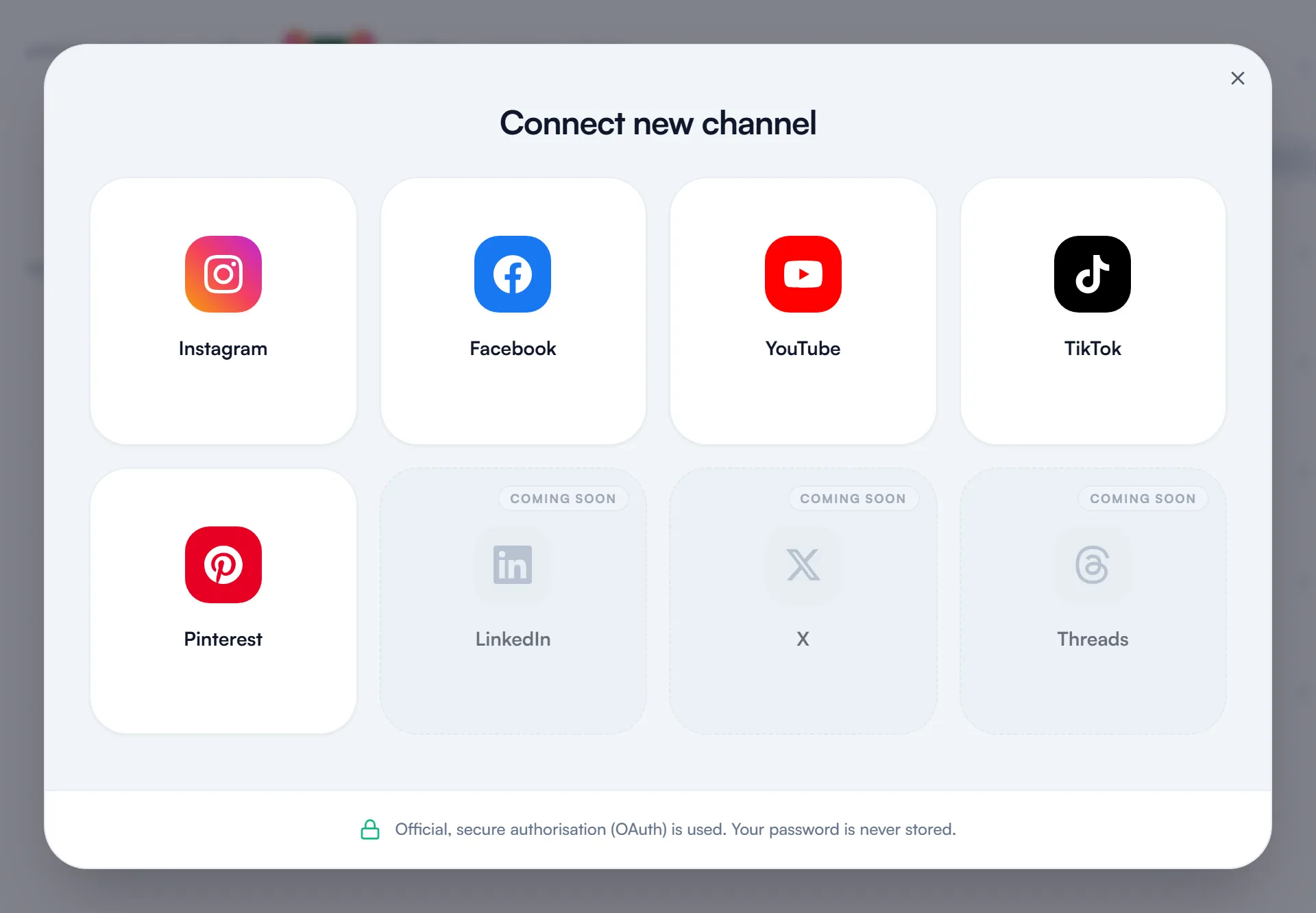
A few details by platform:
- Instagram: the account needs to be a business account for Fourdeck to publish to it.
- Facebook: posts go to the Pages you manage, not your personal profile. Tick the Pages you want on the permission screen. To add another Page from the same Facebook account, there's no need to log out; just edit the Page selection on the permission screen.
- YouTube: on Google's account chooser, pick the account the channel belongs to.
Plan limits
The channel limit is per workspace: 3 channels on the Free plan, 4 on Solo and 10 on Team. The top of the Channels page shows the workspace's plan and how many channels are connected.
Manage the connection
The three-dot menu on each channel's row links to the channel's queue times, opens the account on the platform and offers “Refresh connection”. If publishing or syncing runs into trouble, refresh the connection first; the platform reopens its permission screen and the connection is renewed.
The bin icon disconnects the channel. After that you can no longer publish to the account, and the posts, analytics, tags and data tied to it are deleted permanently, so only disconnect when you're sure.
You need the Channels permission to connect, refresh or remove channels. Fourdeck receives an access token from the platform and stores it encrypted; it never sees your password.