The Fourdeck calendar: every channel's plan on one screen
· 3 min read
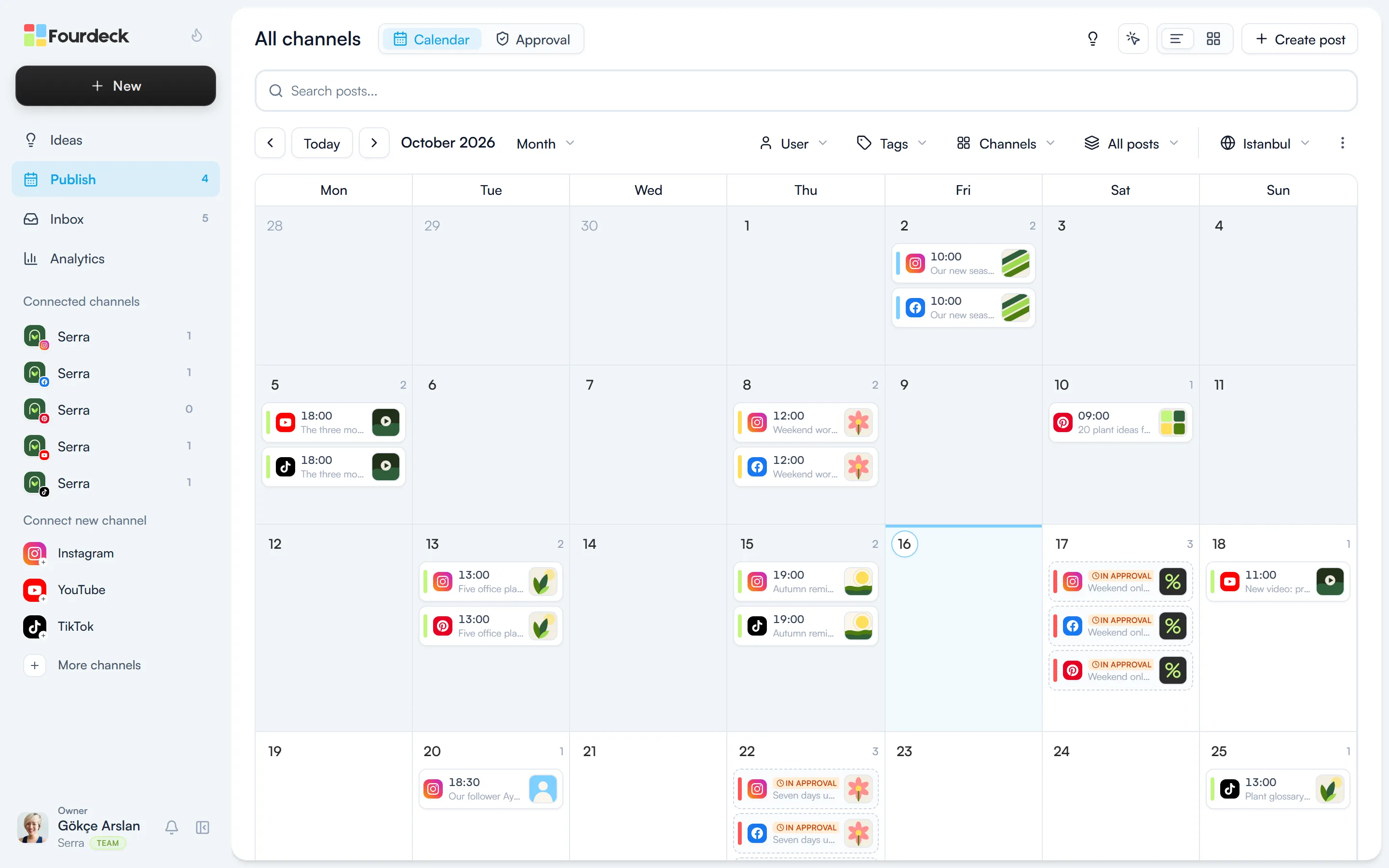
The calendar shows the scheduled, published and pending posts of all your connected channels on one screen. It's where you see what goes out on which day, which days are empty and where posts pile up at the same time. This guide covers the views, the filters and how to move posts around on the calendar.
Open the calendar and pick a view
The Publish page in the left menu opens on the calendar. Each card shows the channel icon, the publishing time, the start of the caption and a thumbnail of the image. Posts awaiting approval stand out with an “In approval” label and a dashed border.
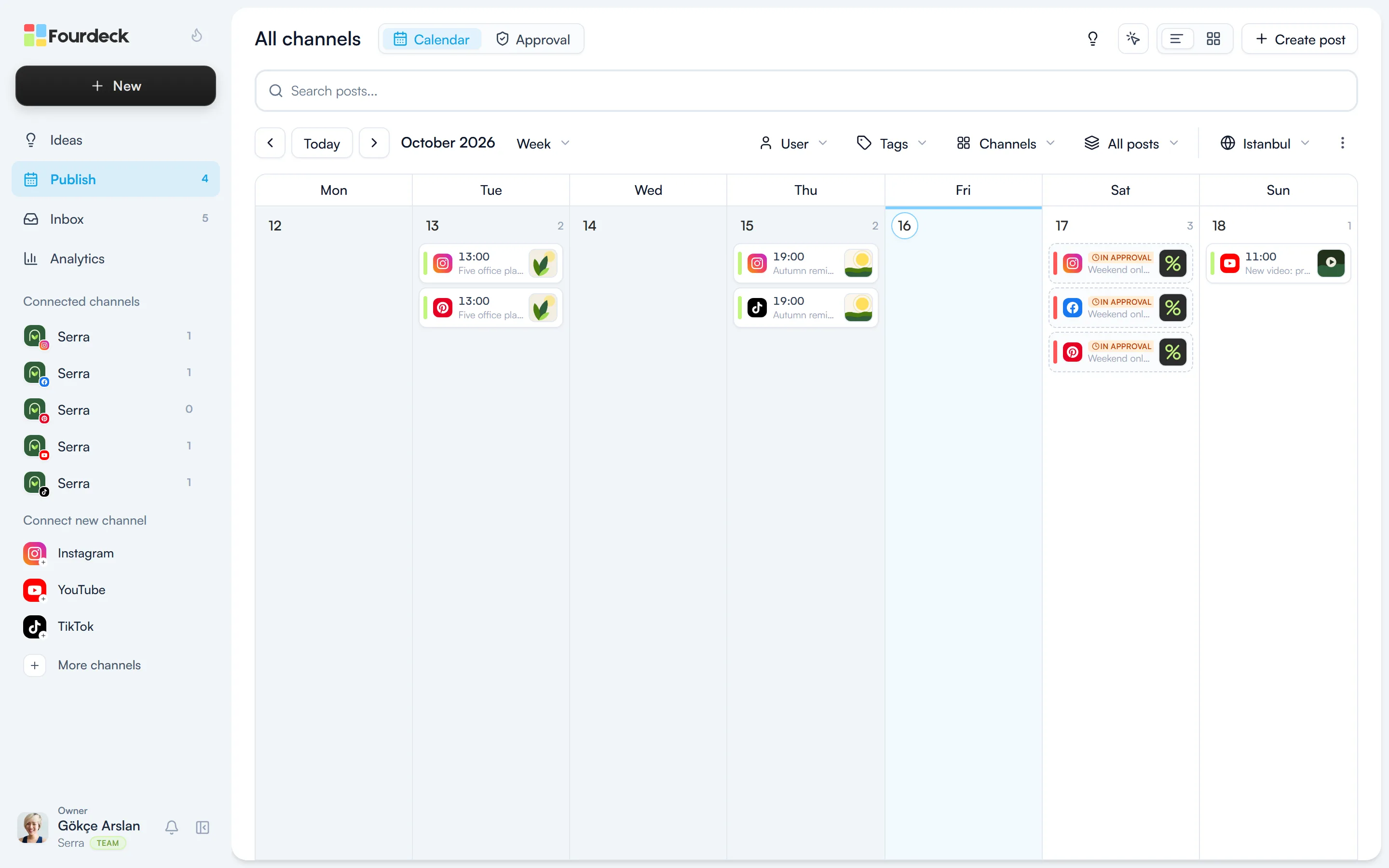
Use the drop-down next to the month to switch between Month, Week and Day. “Today” takes you back to today, and the arrows move to the previous or next period. The week view is easier for going through a busy week day by day.
Filter and search
The filters along the top of the calendar narrow down what you see:
- User: the team member who prepared the post.
- Tags: your own tags, such as campaign or product.
- Channels: one or more channels.
- All posts: posts that are Draft, Scheduled or Published.
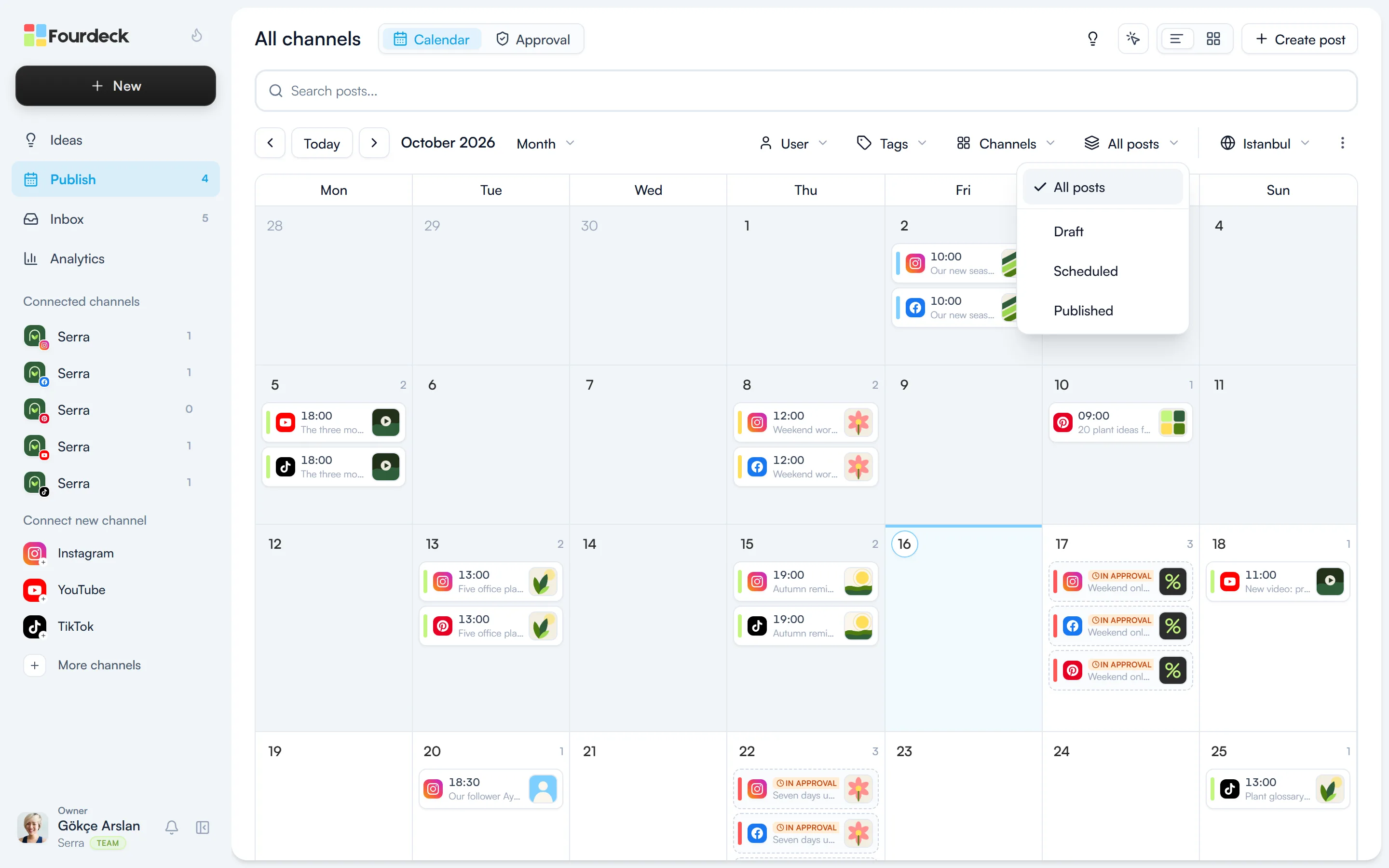
The “Search posts...” field finds posts by a word in the caption. Click a channel in the Connected channels list in the left menu and the calendar shows only that channel's posts. The time zone picker in the top-right corner sets the time zone the calendar shows times in.
Open, edit and move posts
Click a card to open the post with its details; you change the caption, media, channels and date from there. For a new post, use the “Create post” button in the top-right corner.
The quickest way to change a scheduled post's date is to drag its card onto another day:
- In the month view, the post moves to the new day at the same time.
- In the week and day views, it moves to the time you drop it on.
- A post can't be moved to a time that has already passed, and published posts stay where they are.
- Moving a post counts as editing it, so you need permission to edit.