Not every post gets its own photo shoot; sometimes a good stock photo is all you need. Unsplash needs no account: search and pick a photo from the post window. Fourdeck writes the photographer credit Unsplash asks for when the post goes out.
How to connect
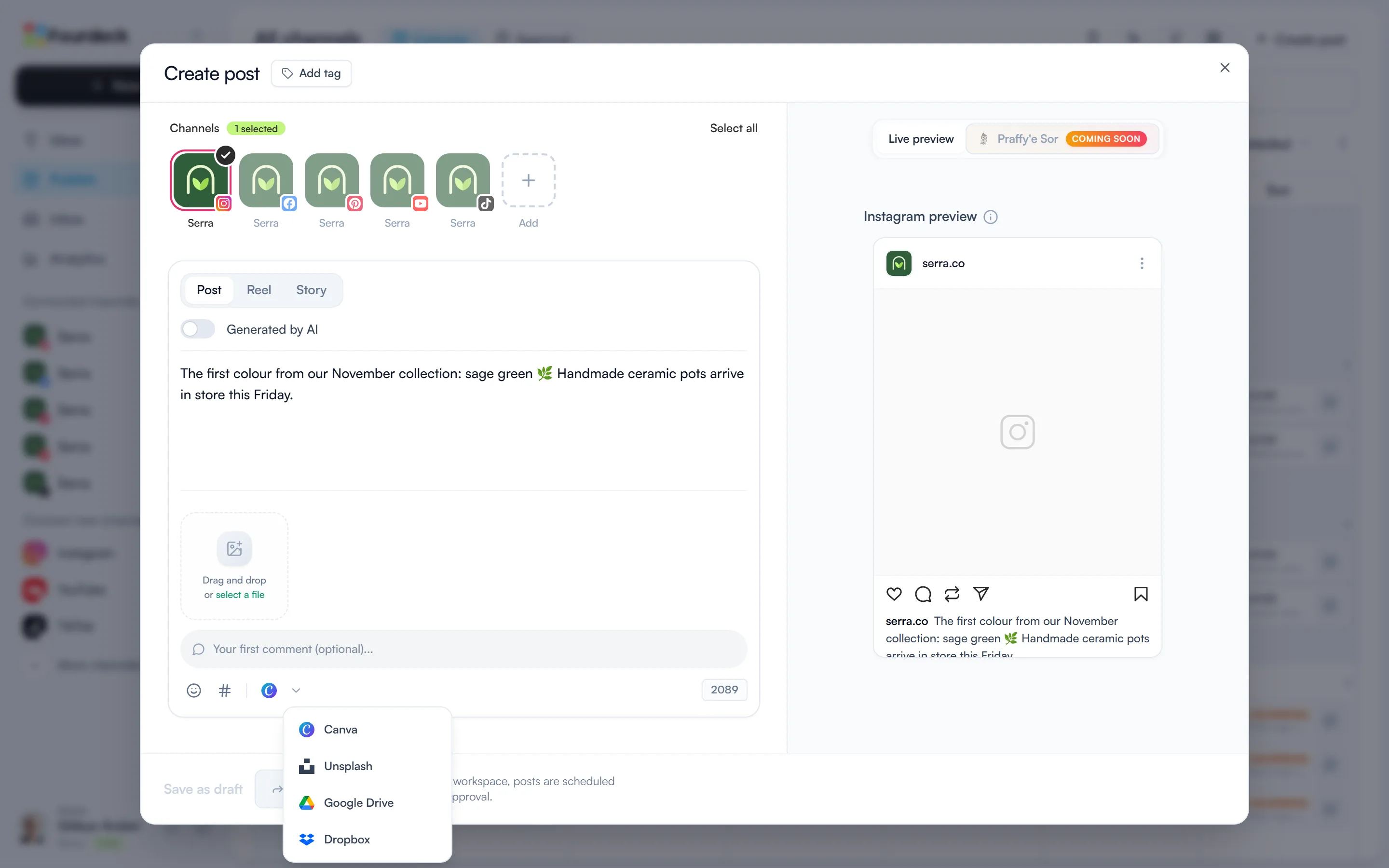
Choose Unsplash in the post window
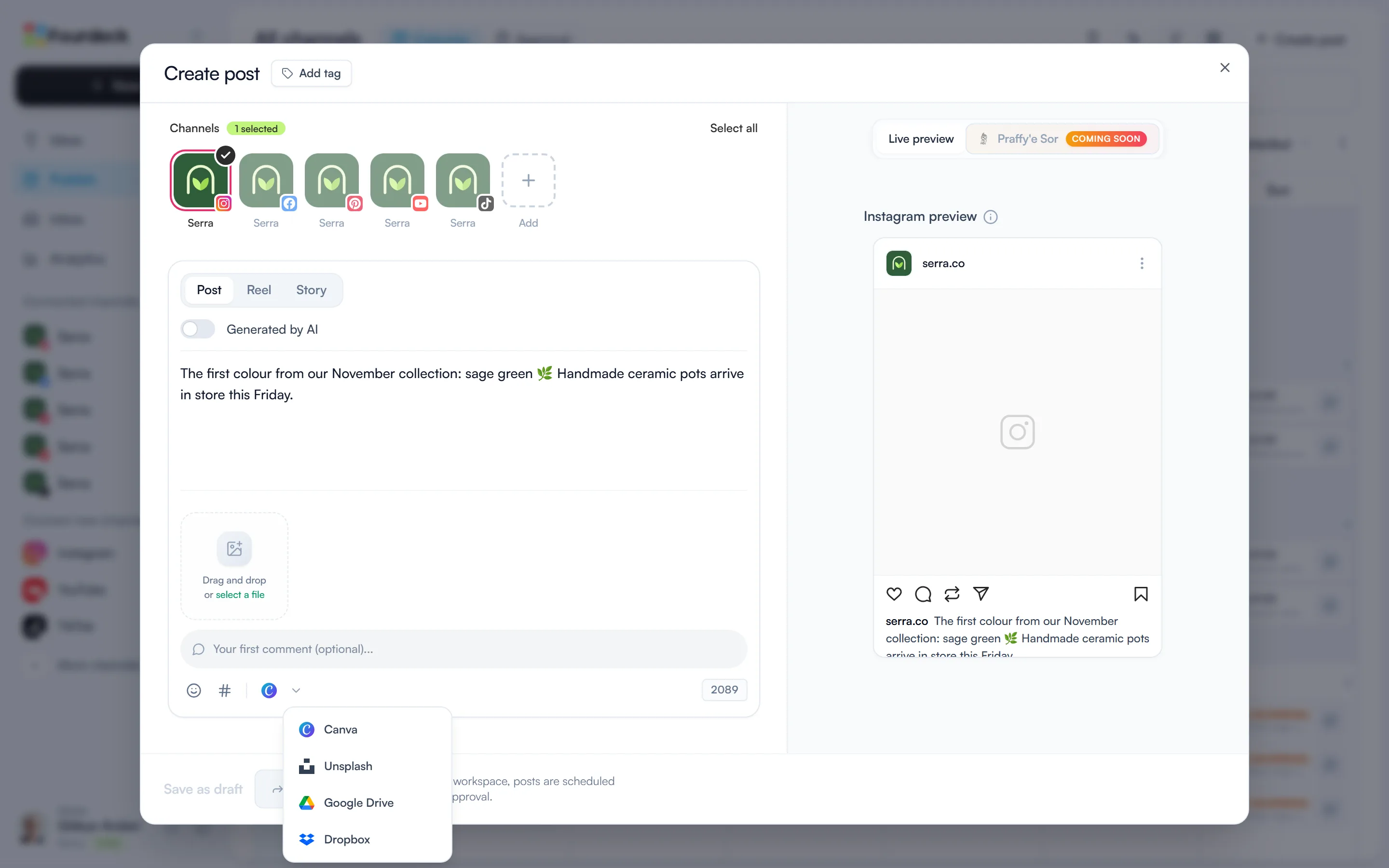
Open “Create post”, click the small arrow next to the media tool in the toolbar and choose Unsplash. There's no account to connect.
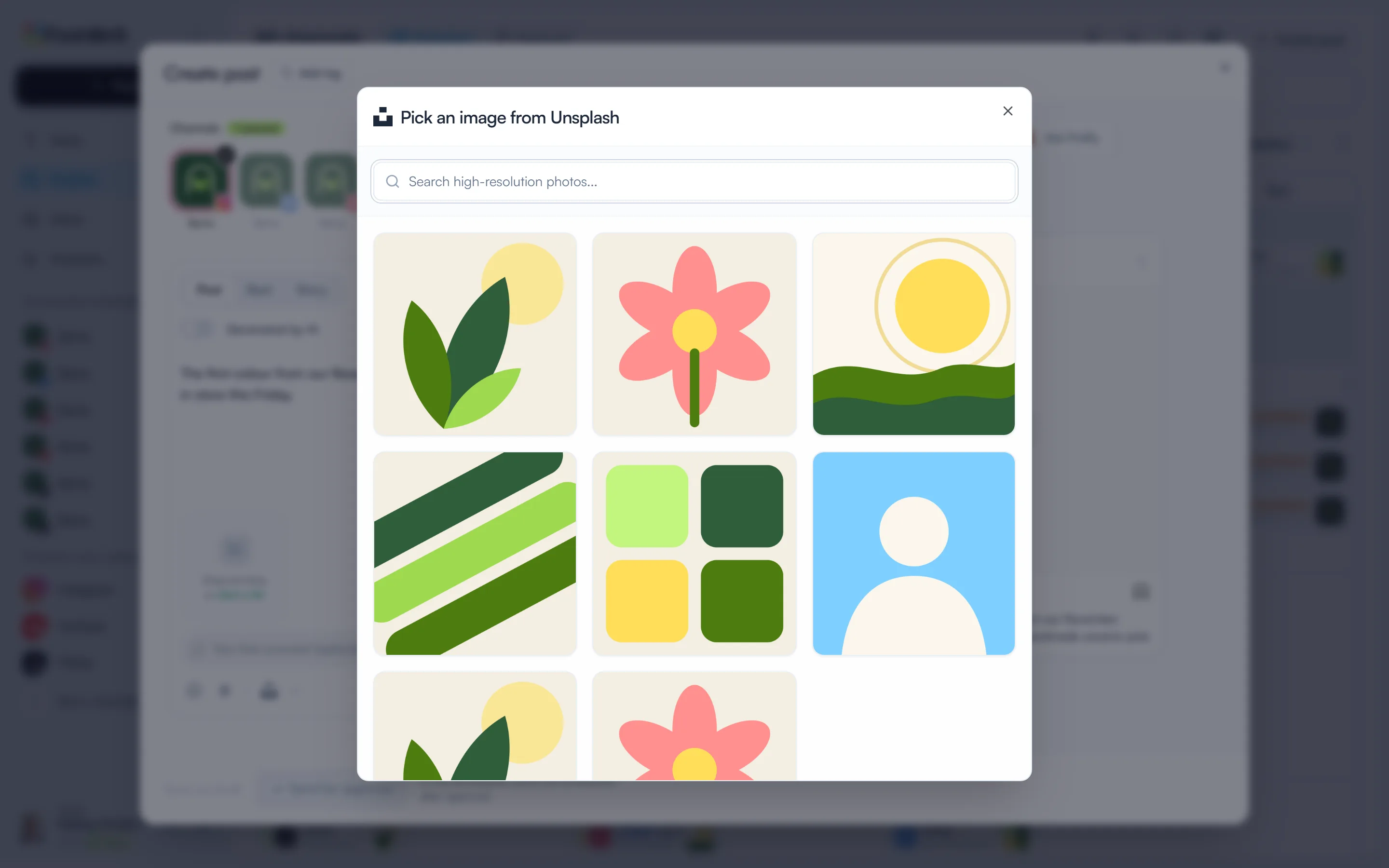
Search and pick a photo
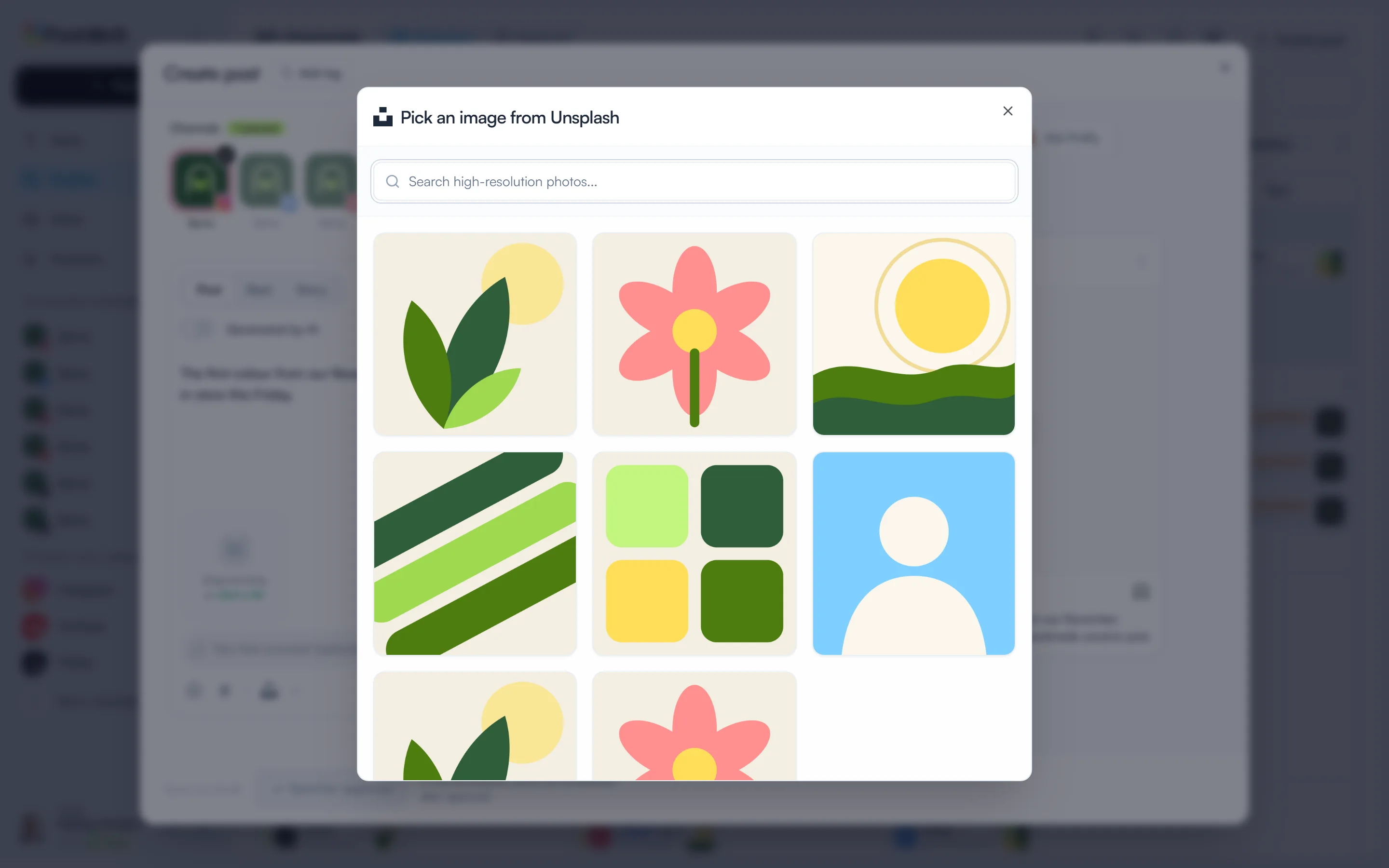
Type what you're looking for and press Enter. Click a photo to add it to the post; the window closes.
Fourdeck adds the credit
When the post goes out, a “Photo by … on Unsplash” line is added to the end of the text. On Instagram the photographer is tagged when their username is known.
What you can do
- Search Unsplash's free photo library from the post window.
- Add a photo to the post in one click.
- Fourdeck writes the photographer credit when the post goes out.
Frequently asked questions
Do I need to connect an Unsplash account?
No. Search for and add photos straight from the post window.
Which plans include it?
Every plan, including Free.