Connect your Pinterest account to schedule Pins from Fourdeck. Choose the board and section, and add a title and a link to your site with the post.
How to connect
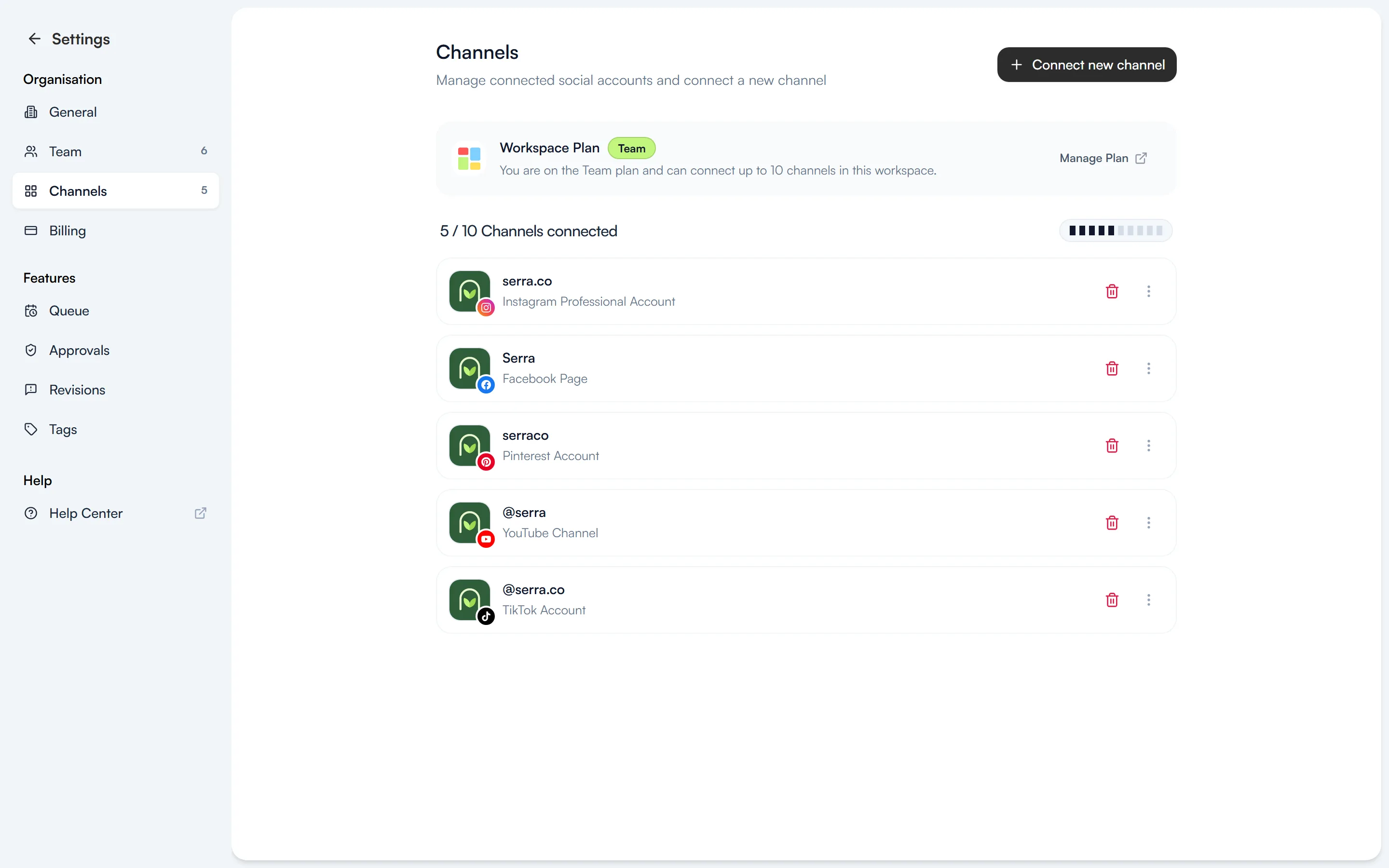
Open Connect new channel
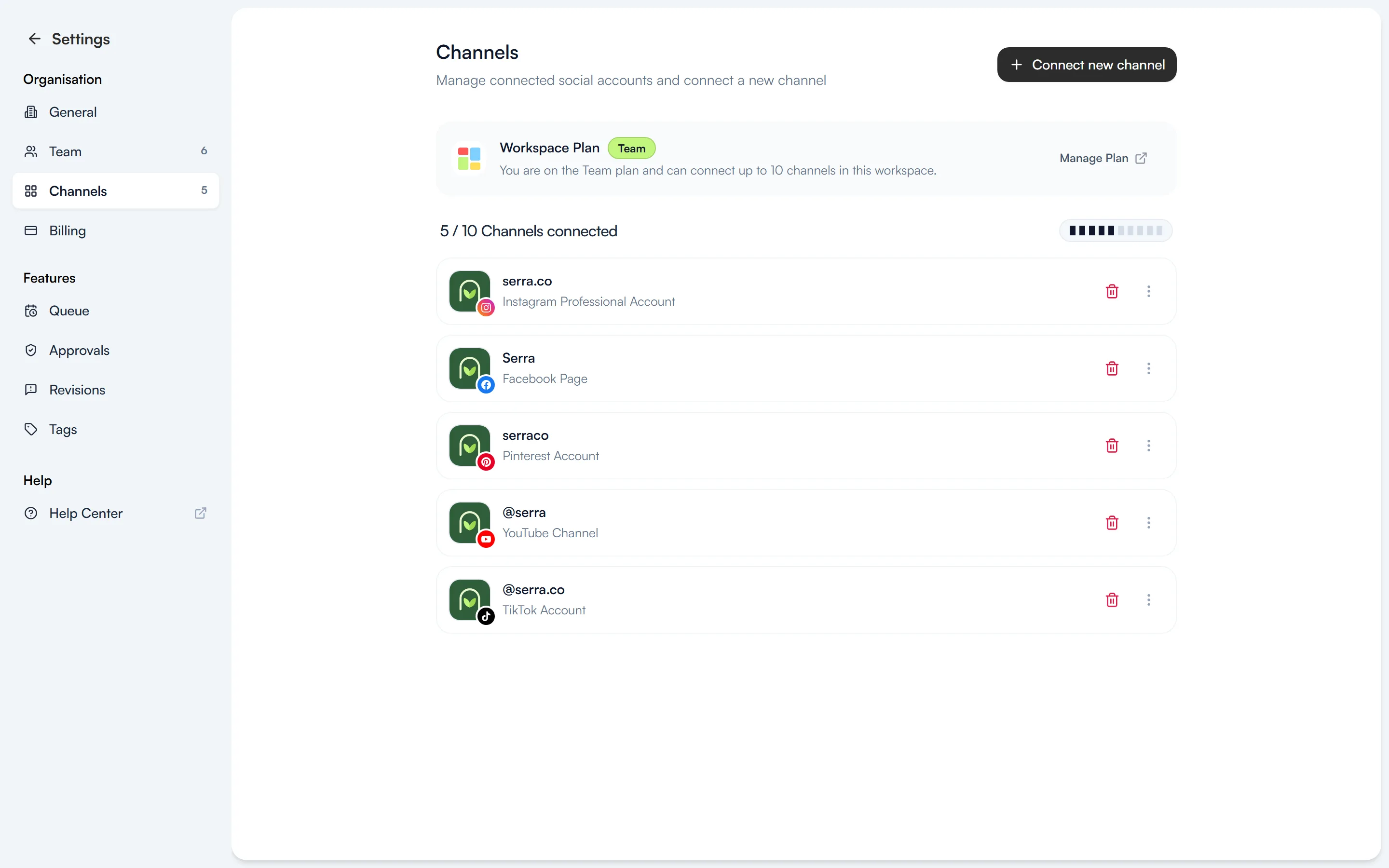
Go to Settings → Channels and select “Connect new channel”. The same window also opens from the Connect new channel section in the left menu.
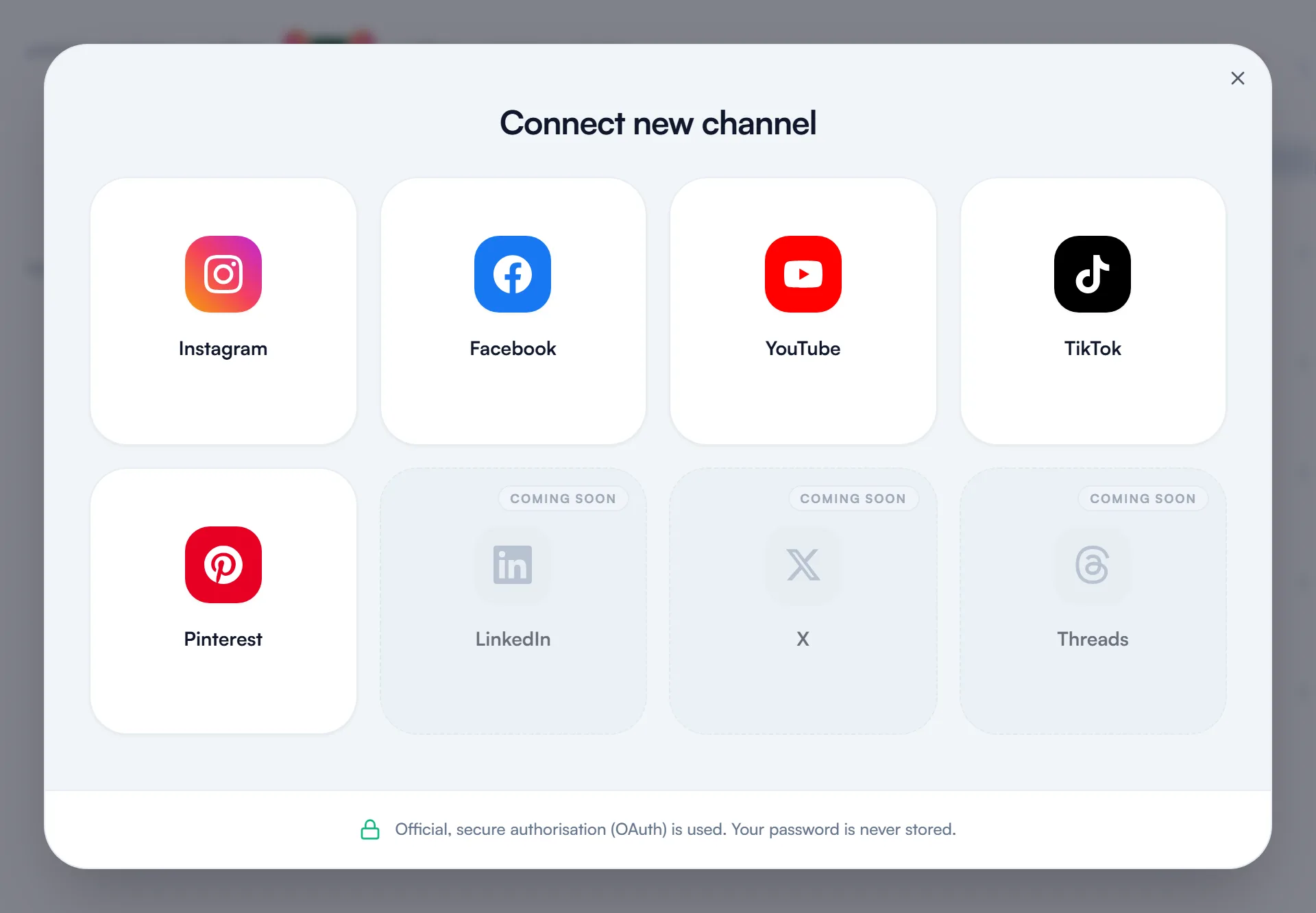
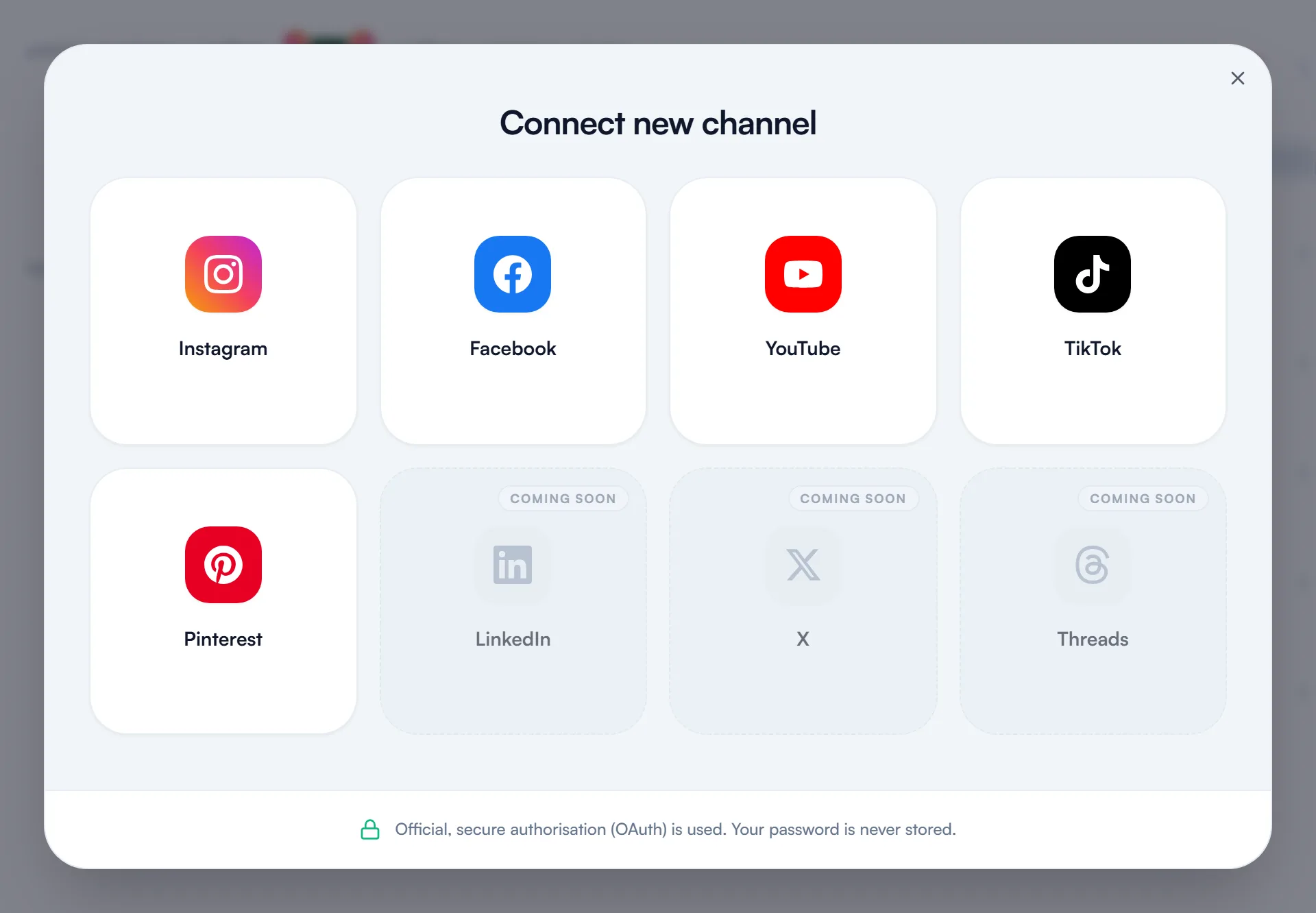
Sign in with Pinterest and allow access
Select Pinterest in the window. Sign in on Pinterest's own screen and approve the permissions Fourdeck asks for. Fourdeck never sees your password.
Your channel is ready
Back in Fourdeck, the channel appears in the list and in the left menu. You can now schedule posts to it or add them to the queue.
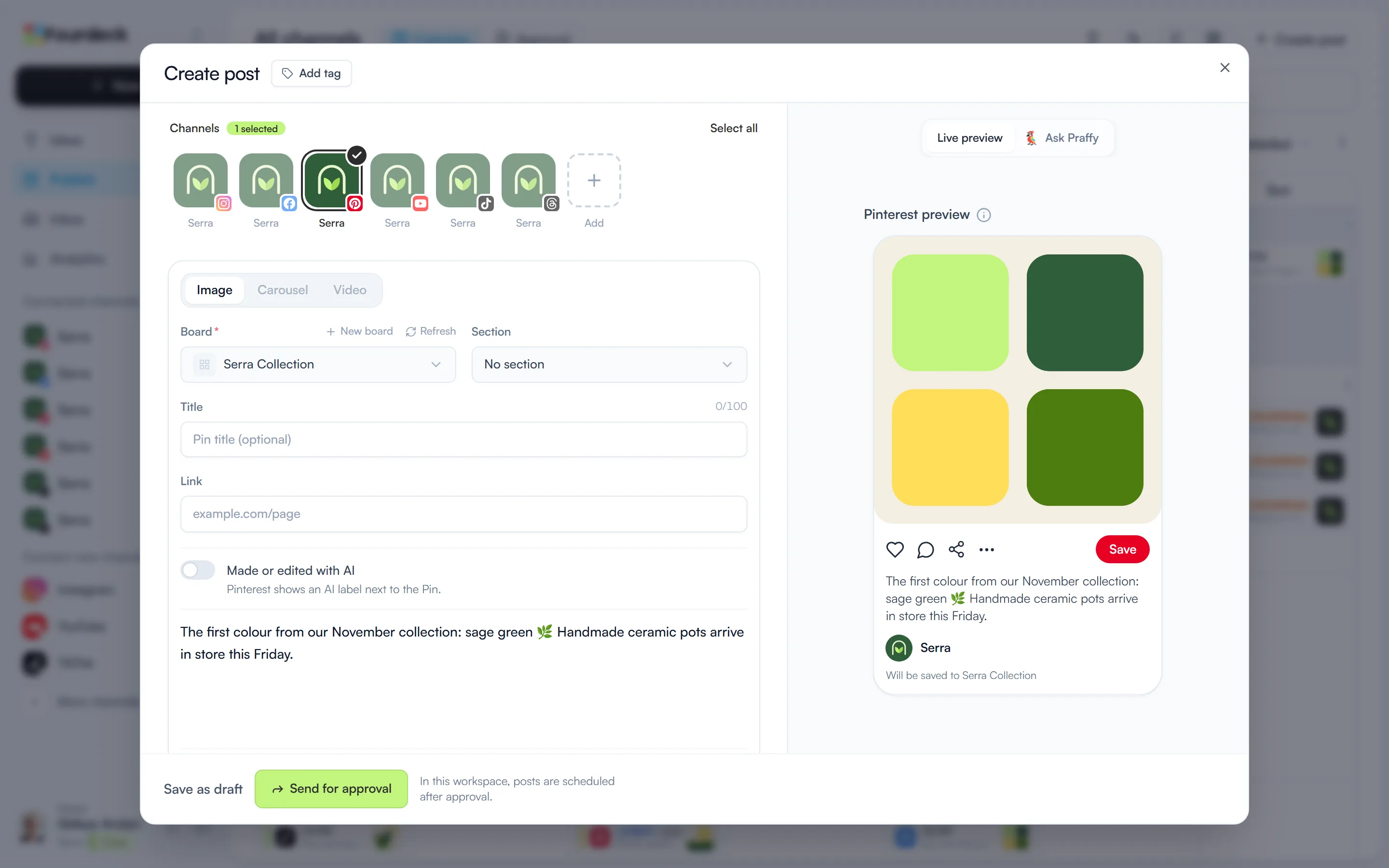
Prepare your Pinterest post
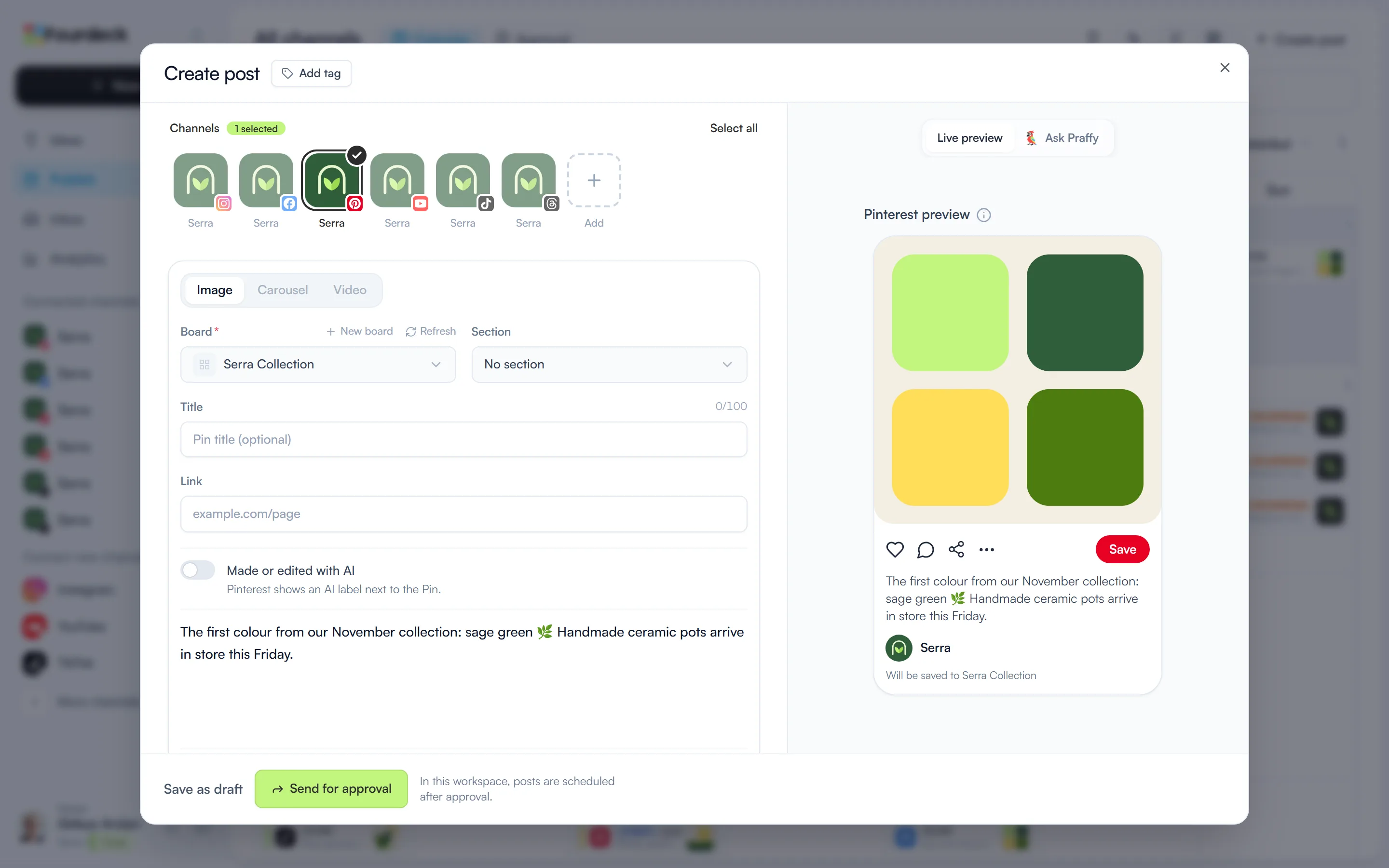
Select your Pinterest channel in the post window. Choose an image, carousel or video Pin, then set the board, title and a link to your site.
What you can do
- Schedule image, video and carousel Pins with up to five images.
- Choose a board and section, or create a new board.
- Add a title and a link to your site.
- Track Pin performance in Analytics.
Frequently asked questions
Does Fourdeck see my password?
No. You grant access on the platform's own sign-in screen. Fourdeck only receives an access token and stores it encrypted.
How many channels can I connect?
The limit is per workspace: 2 channels on Free, 3 on Lite, 8 on Solo and 10 on Team.