Finishing a design in Canva, downloading a PNG, then finding and uploading it is a small job you repeat every day. In Fourdeck you start the design from the post window: Canva opens at the right size, and when you return the design is already in the post.
How to connect
Connect your Canva account
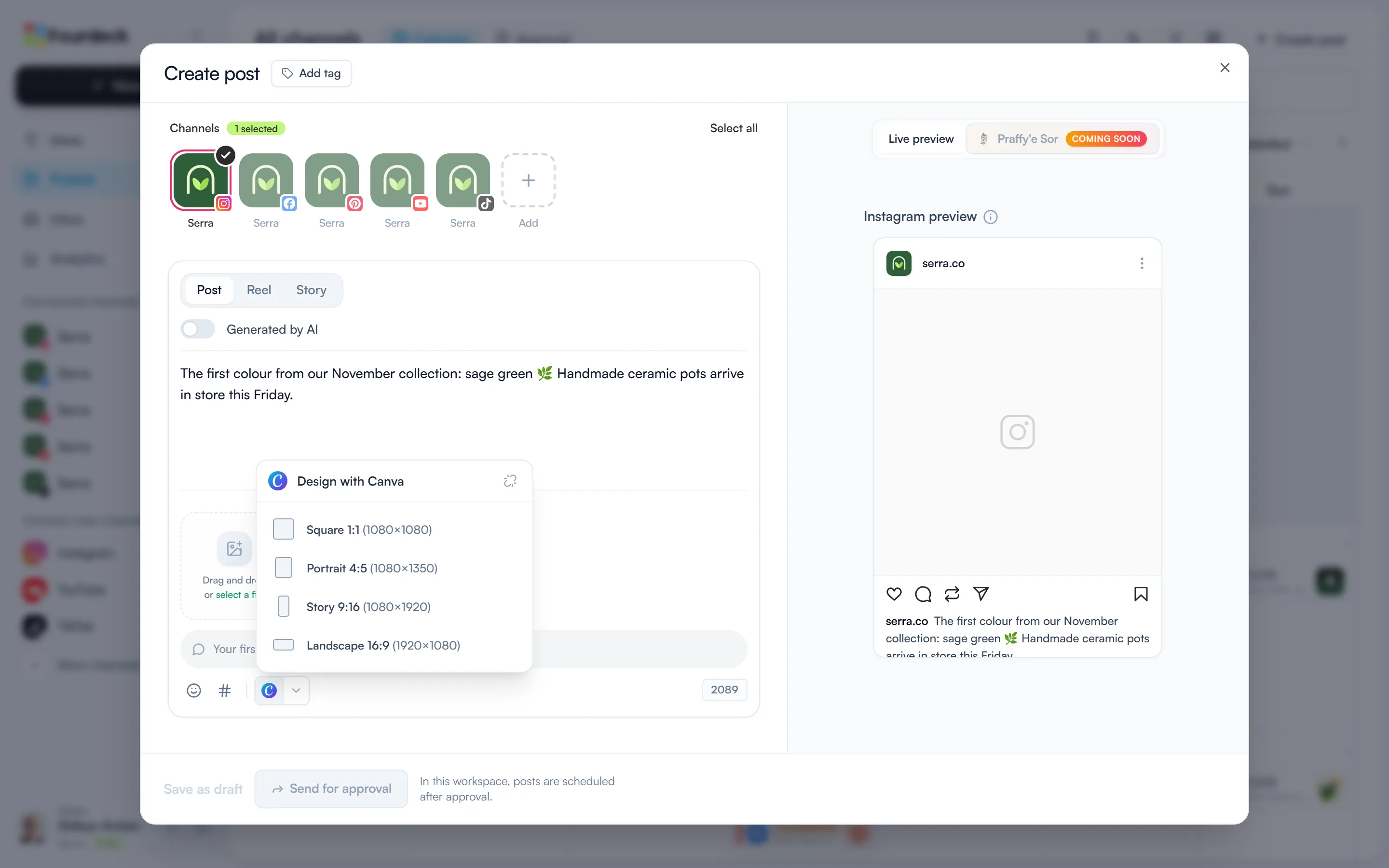
On Publish, select “Create post” and click the Canva icon in the toolbar under the text area. If your account isn't connected, a “Connect Canva” button appears; sign in and allow access in the window that opens.
Pick a size and design
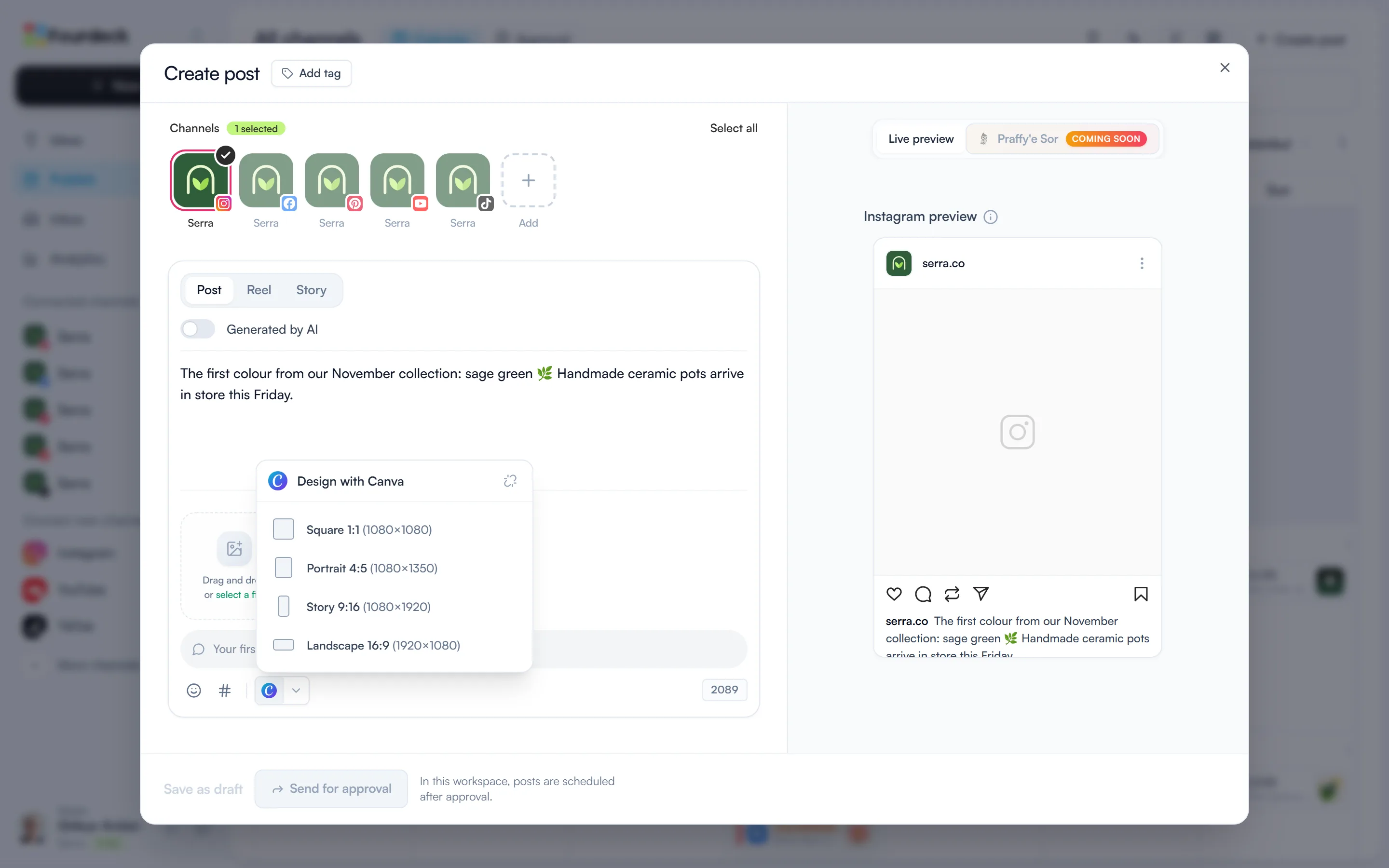
Choose Square, Portrait, Story or Landscape from the “Design with Canva” menu. Canva opens with a blank design in that size.
Design in Canva
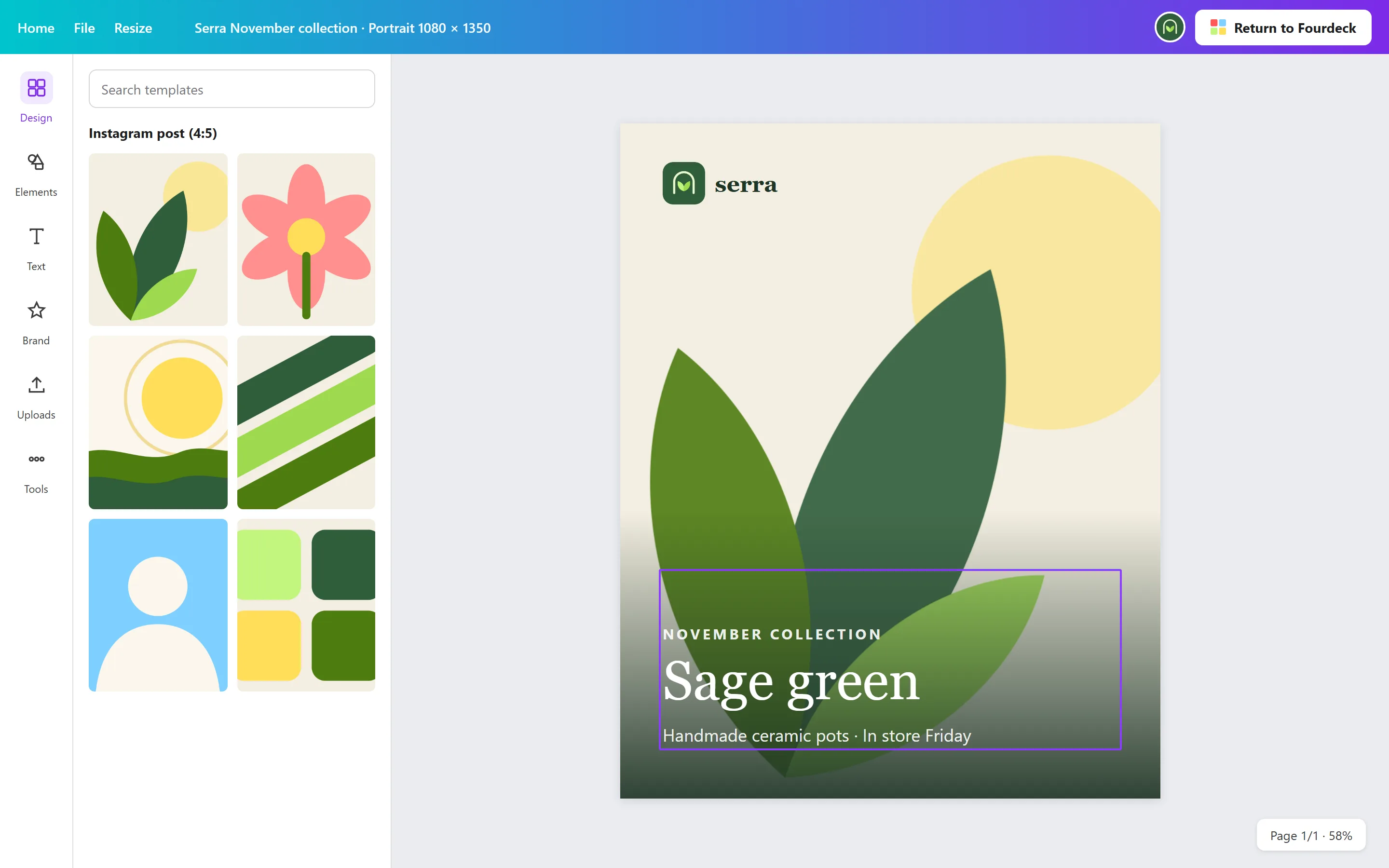
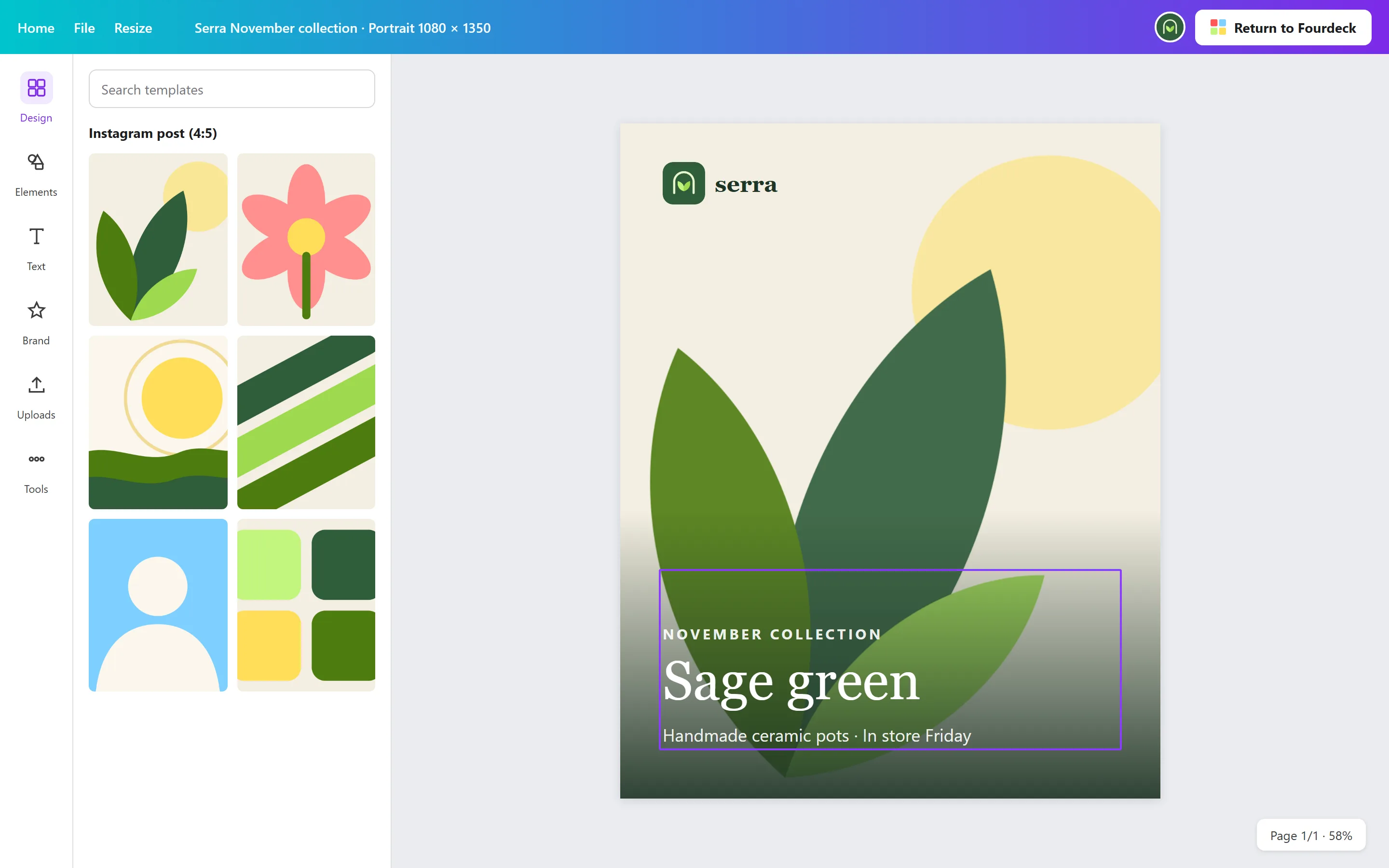
Canva opens in a new tab at the size you chose. Design as usual, then select the button at the top right that returns to Fourdeck.
Illustrative screen The design is in your post
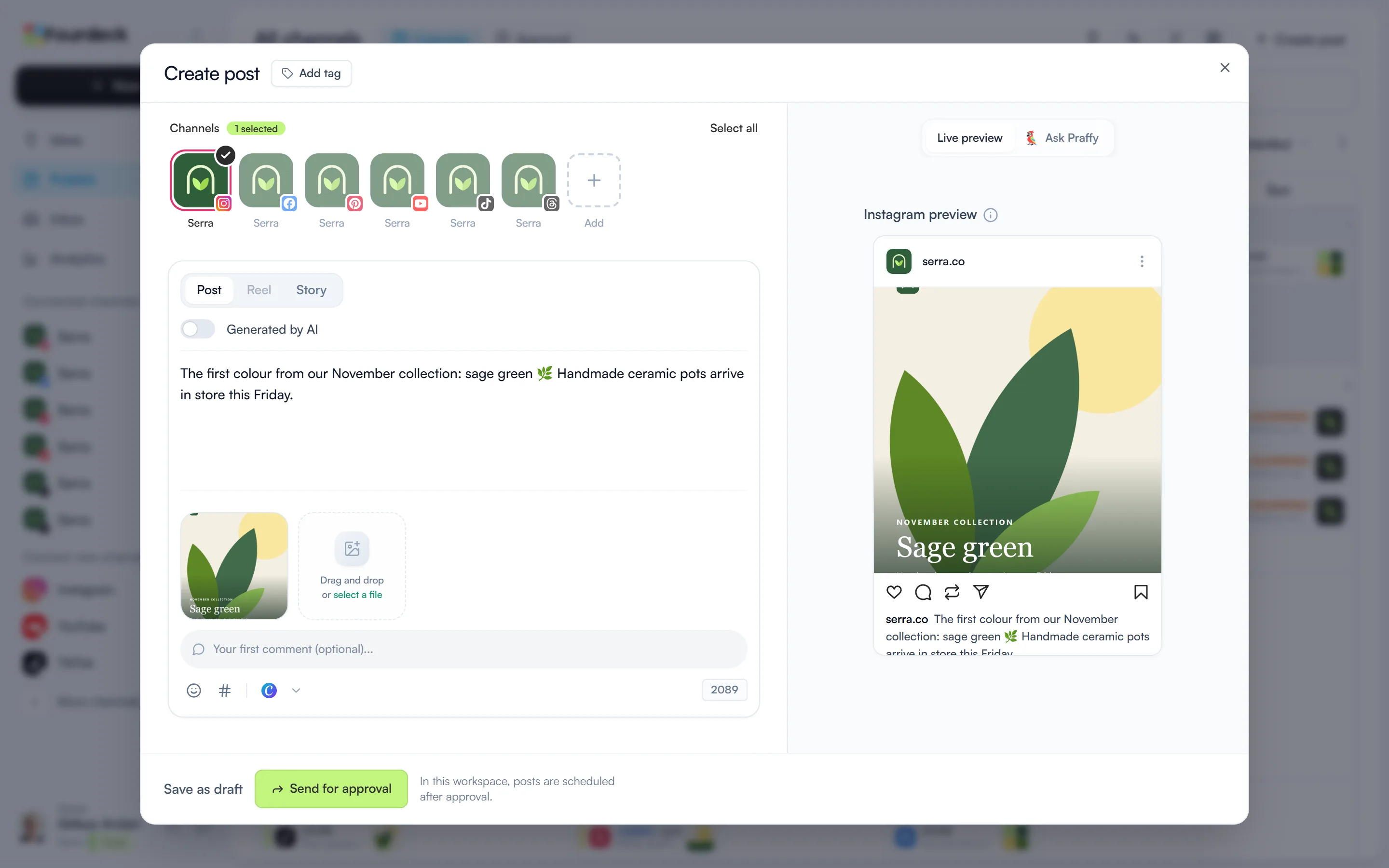
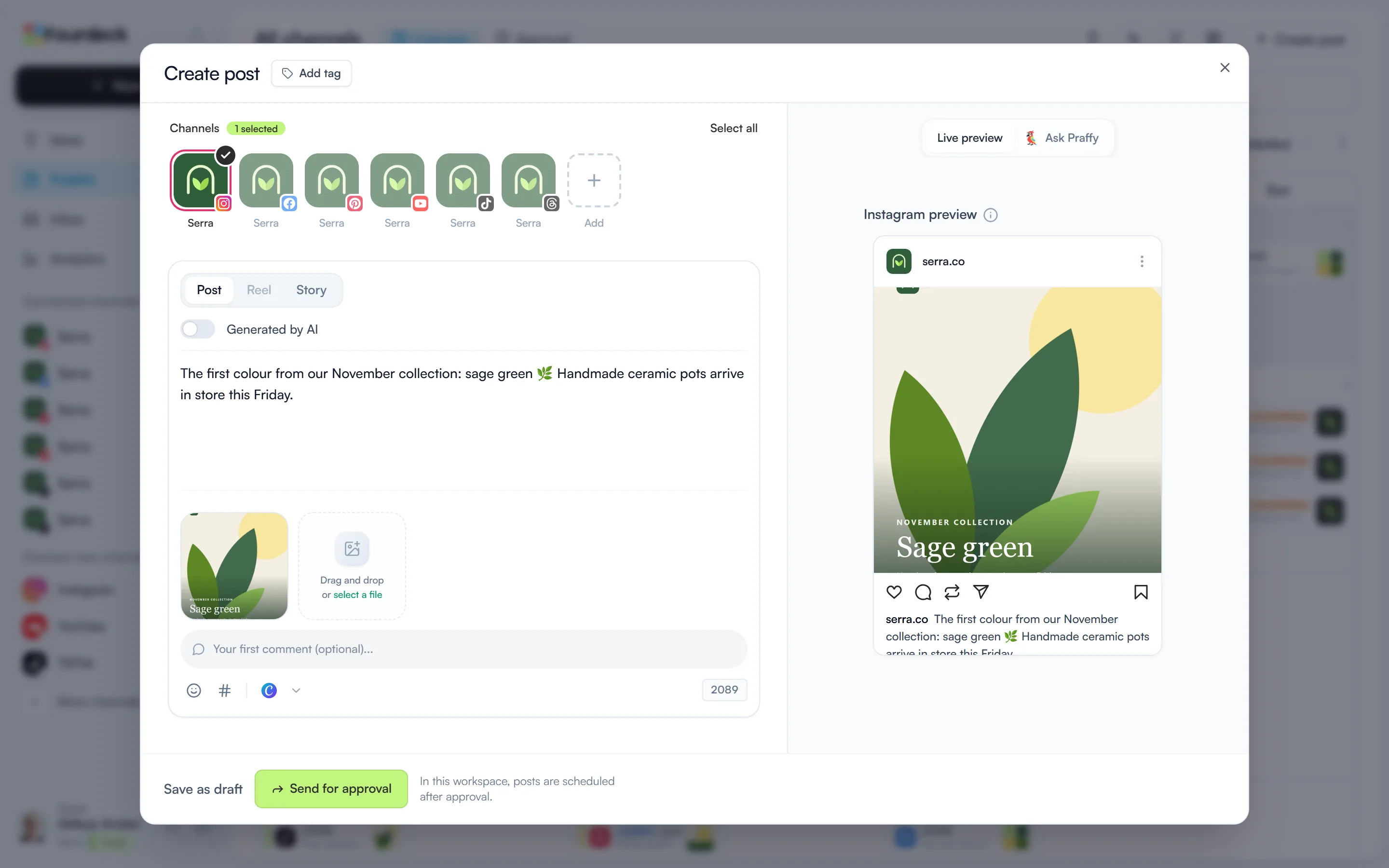
Back in Fourdeck, the design is already in the post's media. Write the text, then schedule it or send it for approval.
What you can do
- Start a Square, Portrait, Story or Landscape design from the post window.
- Add the finished design to the post without downloading it.
- Each team member connects their own Canva account and brings their own designs.
Frequently asked questions
Which plans include Canva?
Every plan, including Free.
What if I close Canva without returning?
The design isn't added to the post, but it stays in your Canva account. Open a new design from the menu to carry on.