Agencies and brands often keep their shoot archive in Dropbox. In Fourdeck you don't need to download files first: open Dropbox's own chooser from the post window and select the files you want.
How to connect
Choose Dropbox in the post window
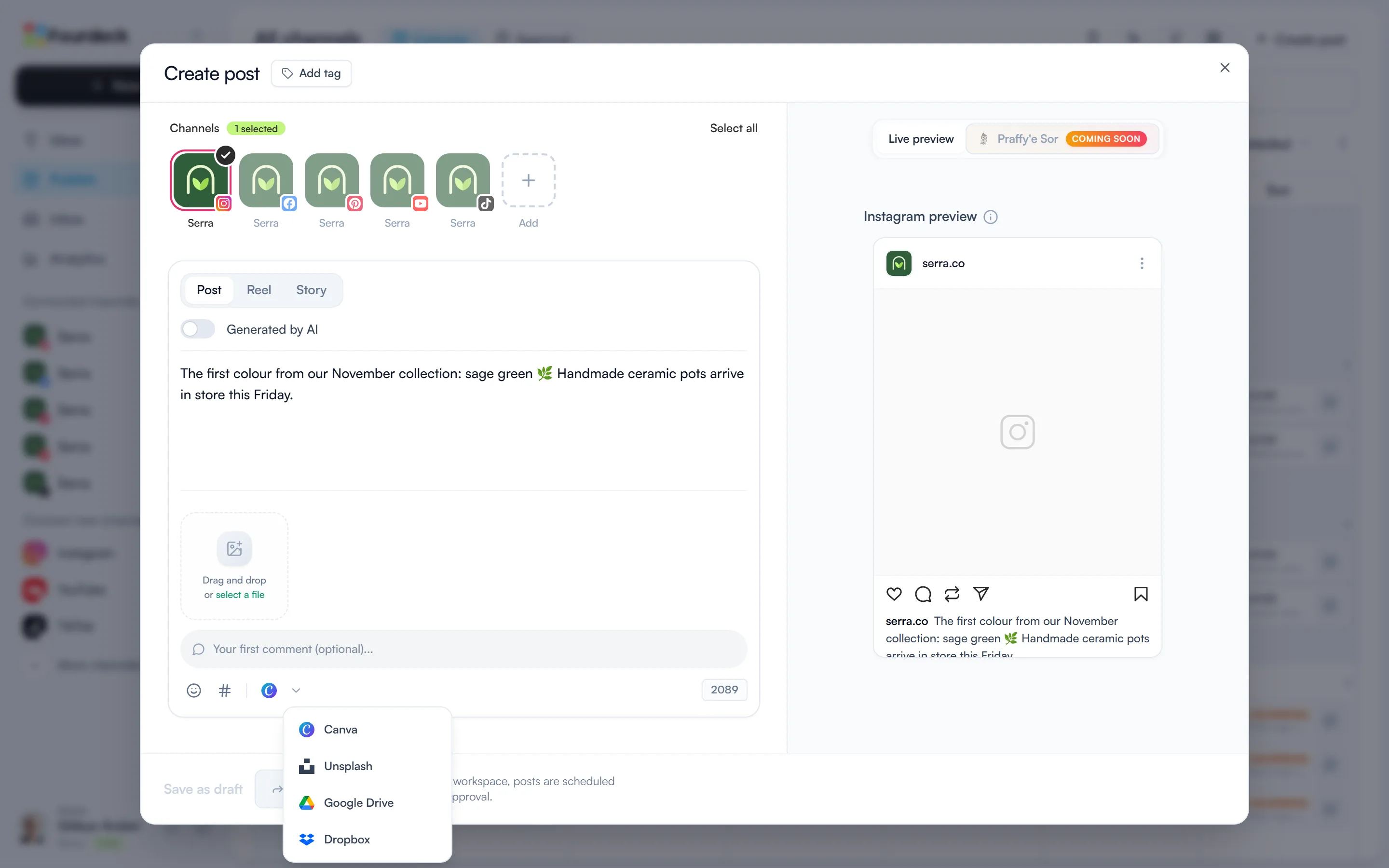
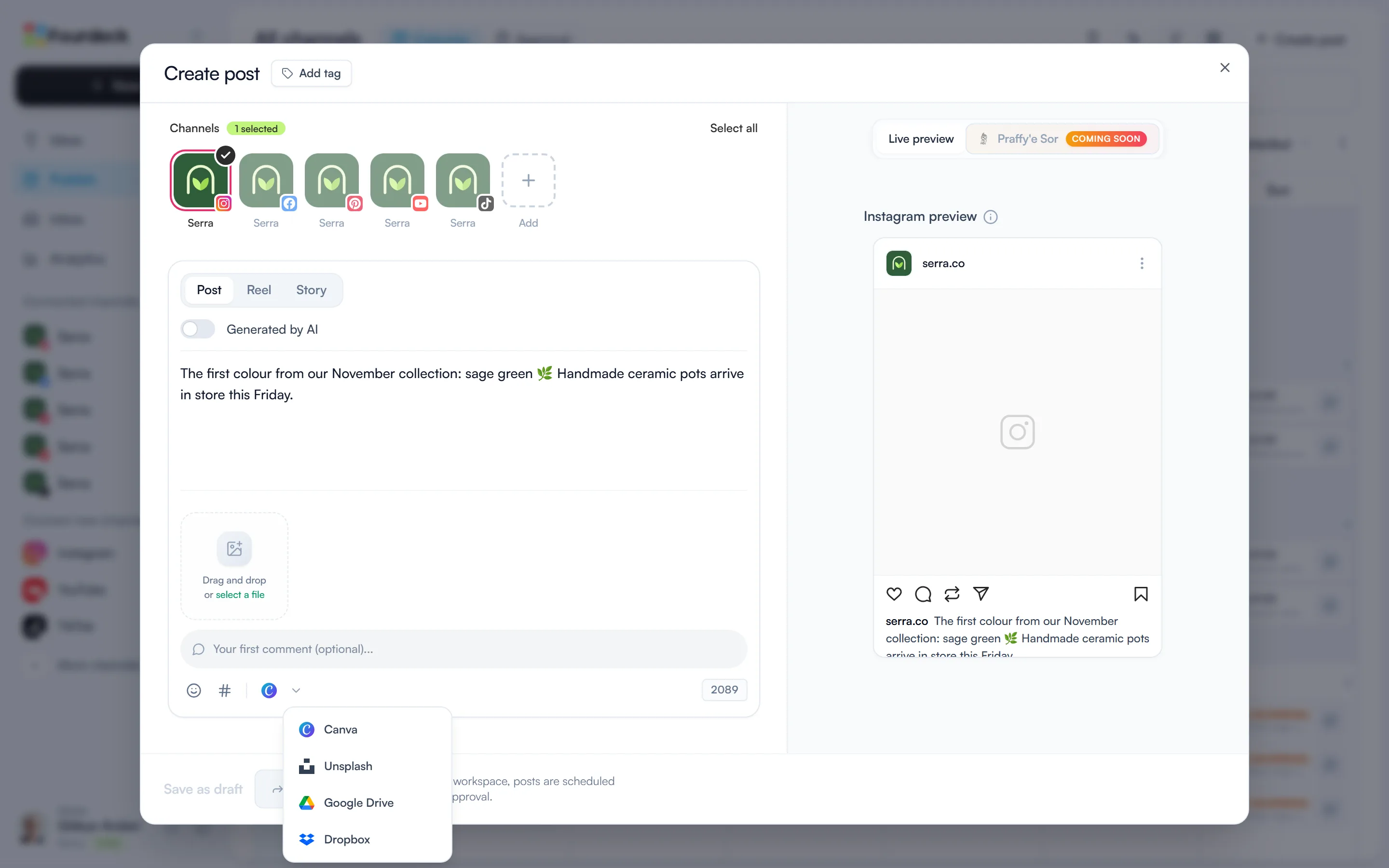
Open “Create post”, click the small arrow next to the media tool in the toolbar and choose Dropbox.
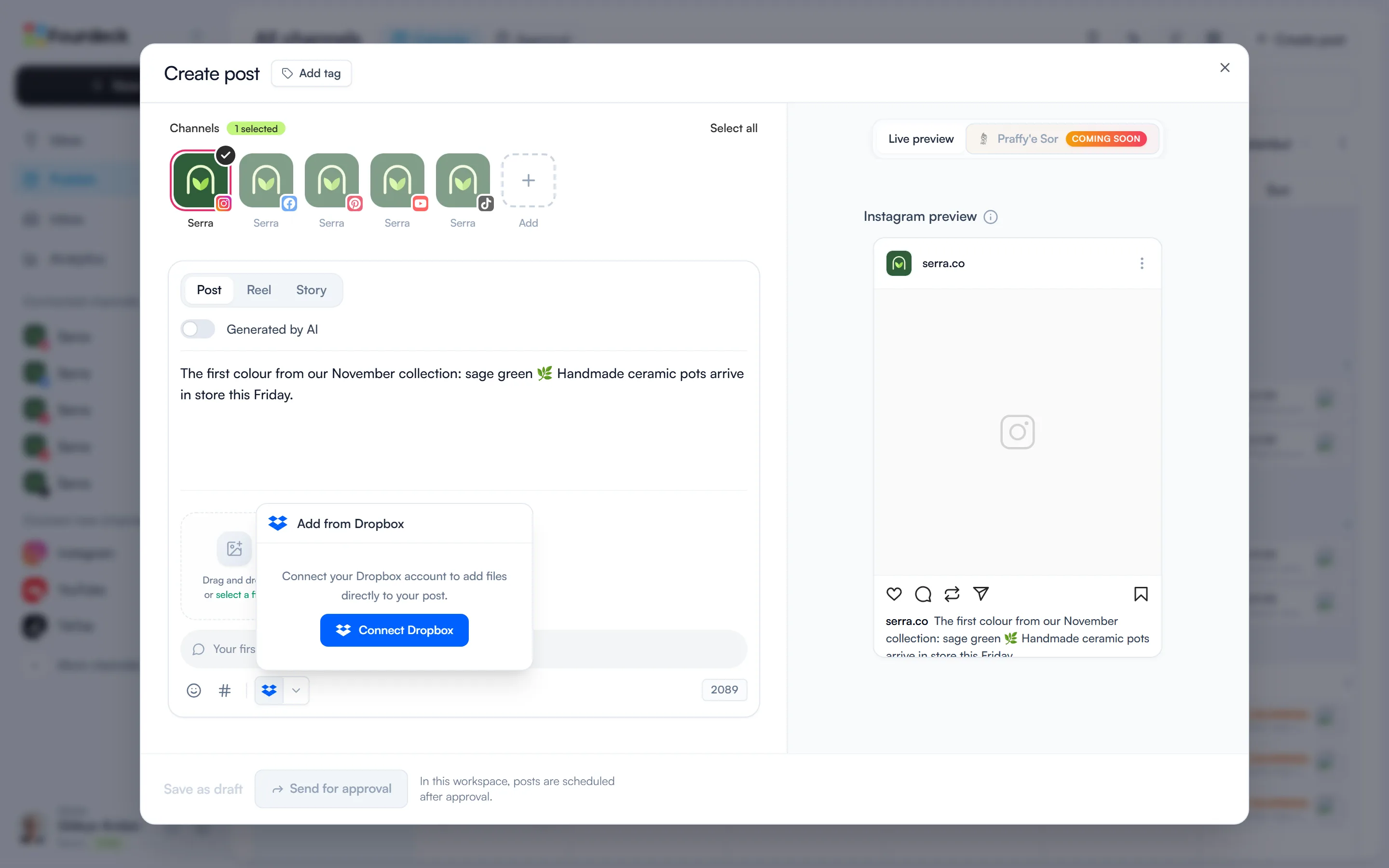
Connect your Dropbox account
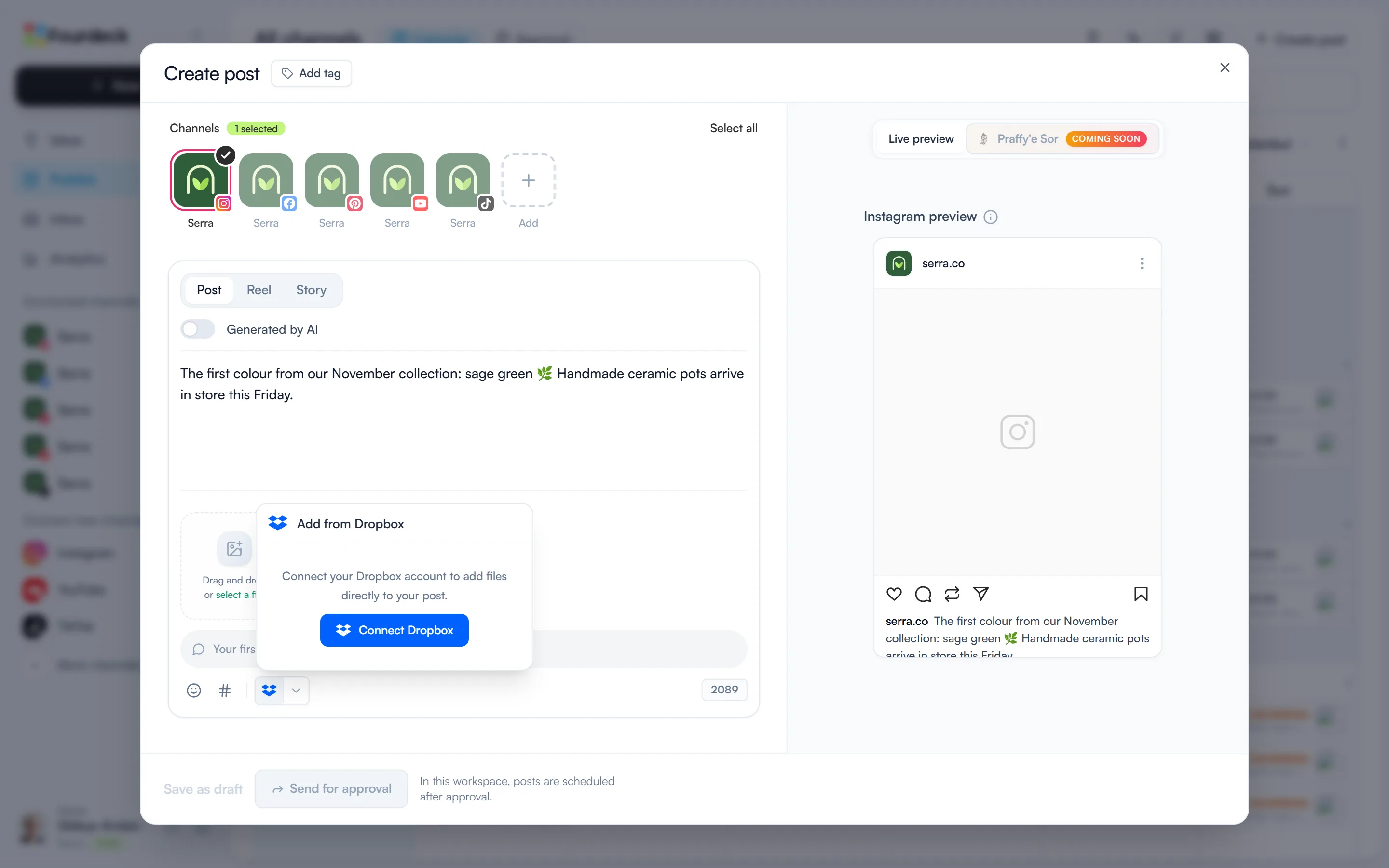
Select “Connect Dropbox”, sign in and allow access in the window that opens, then select “Open Dropbox”.
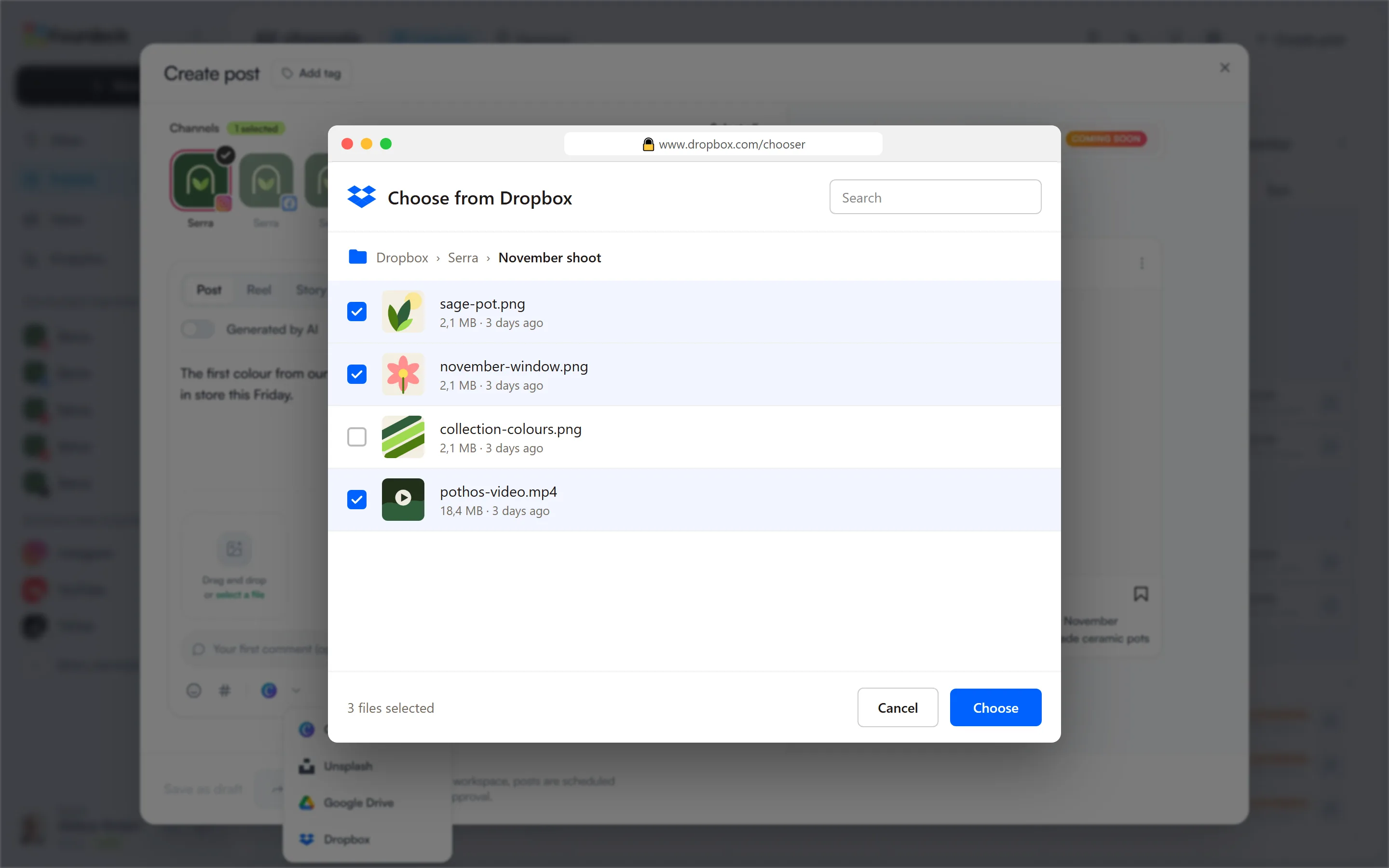
Pick your files
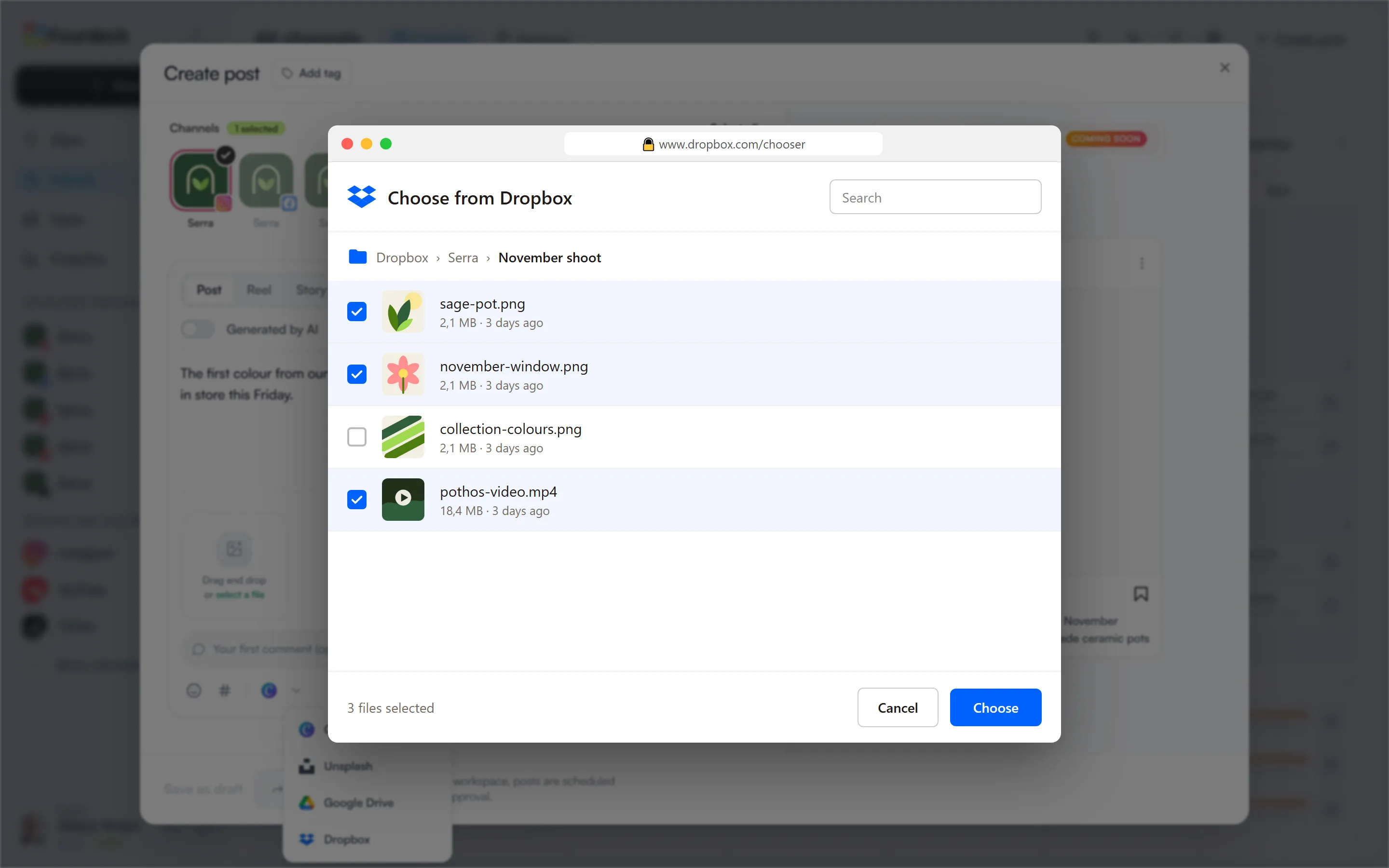
Select several files at once in Dropbox's chooser. The limit is 100 MB per file.
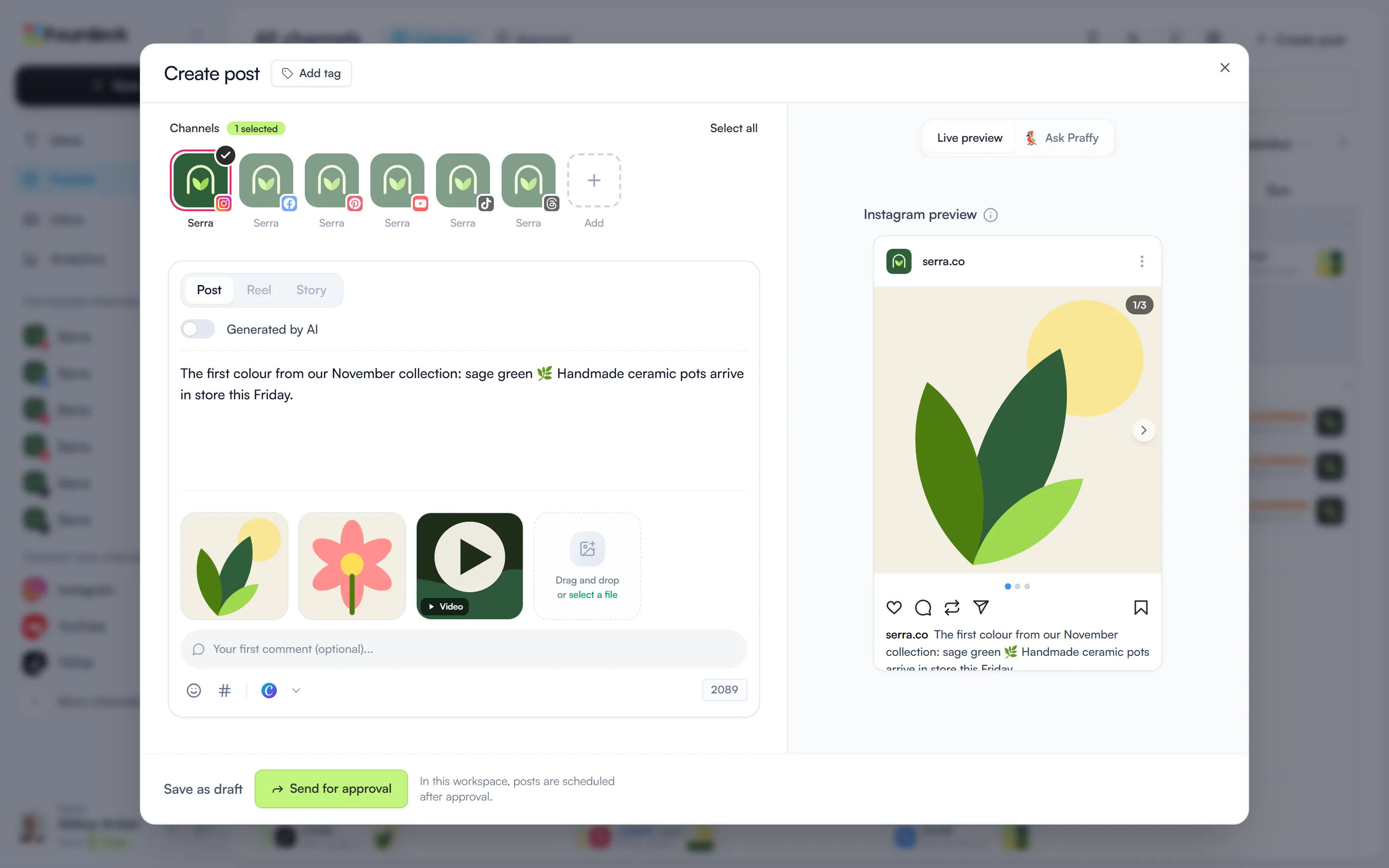
Illustrative screen The files are in your post
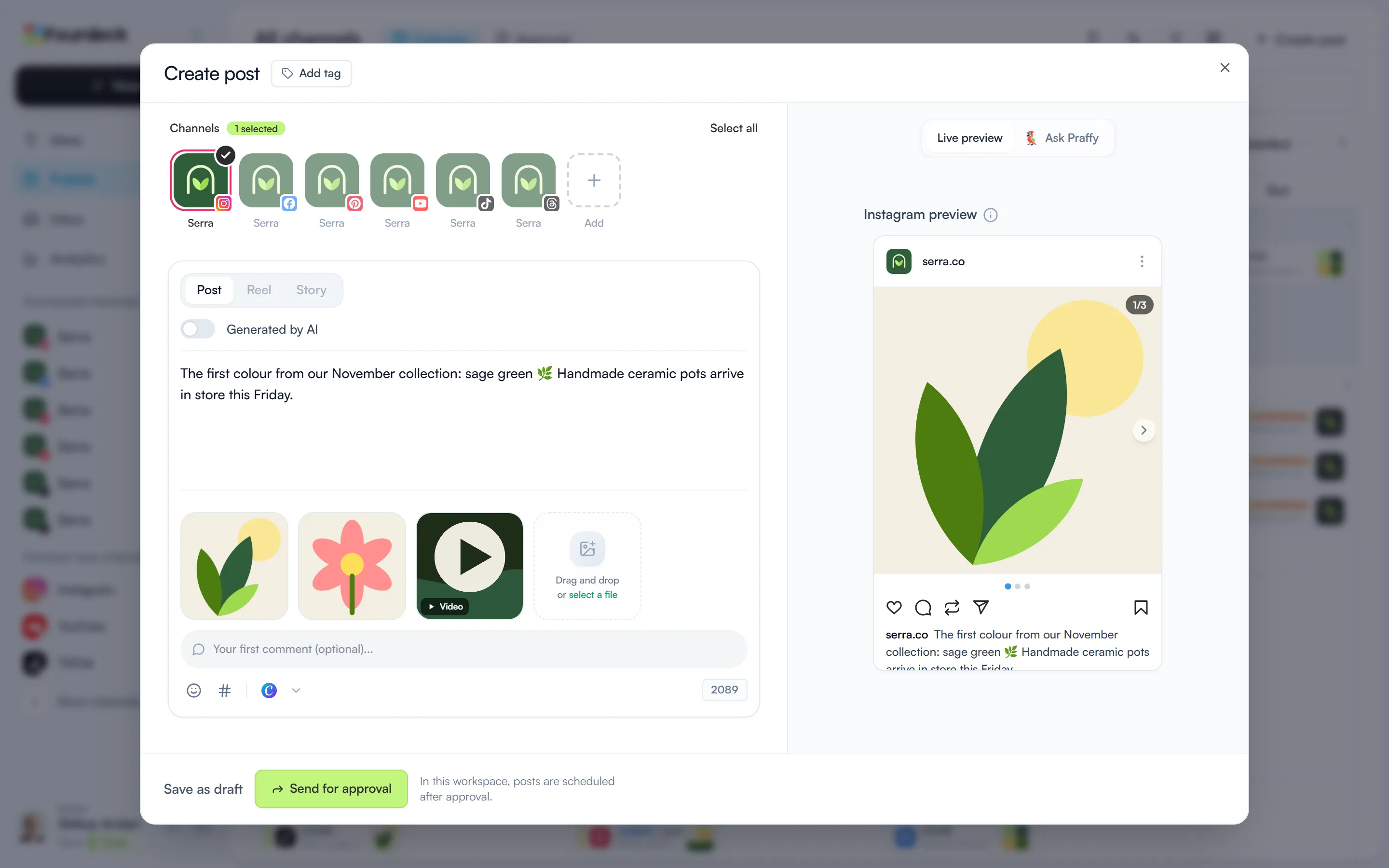
The images and videos you picked are added to the post's media. Write the text, then schedule it or send it for approval.
What you can do
- Add images, videos and PDFs from Dropbox straight into a post.
- Select several files at once.
- Each team member connects their own Dropbox account.
Frequently asked questions
Is there a file size limit?
100 MB per file. A larger file isn't added and Fourdeck names the file that's over the limit; the other files you picked are still added.
Which plans include it?
Every plan, including Free.