Your team's photos and videos often sit in a shared Drive folder. In Fourdeck you don't download and re-upload them: open Google's own file picker from the post window and select the file.
How to connect
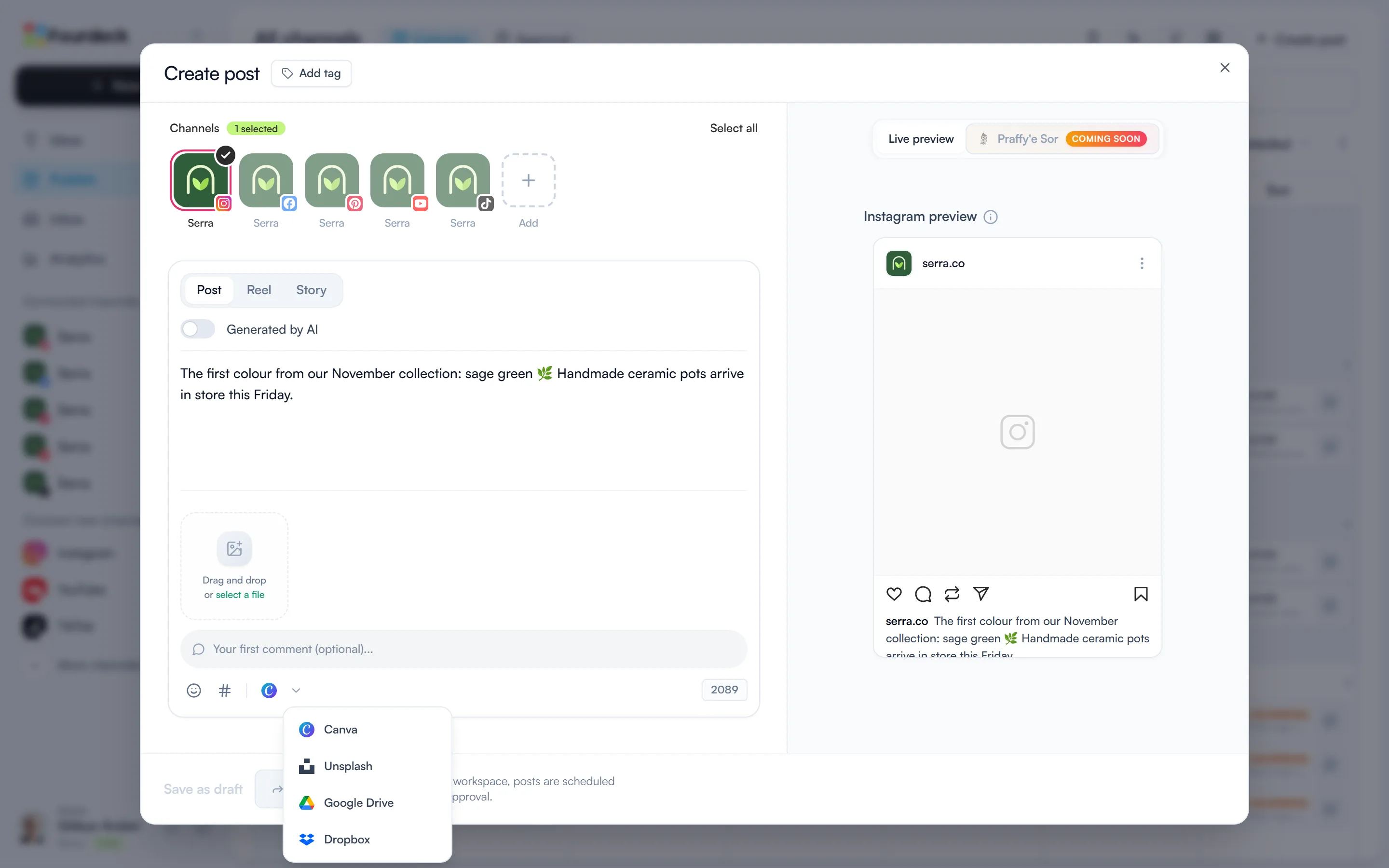
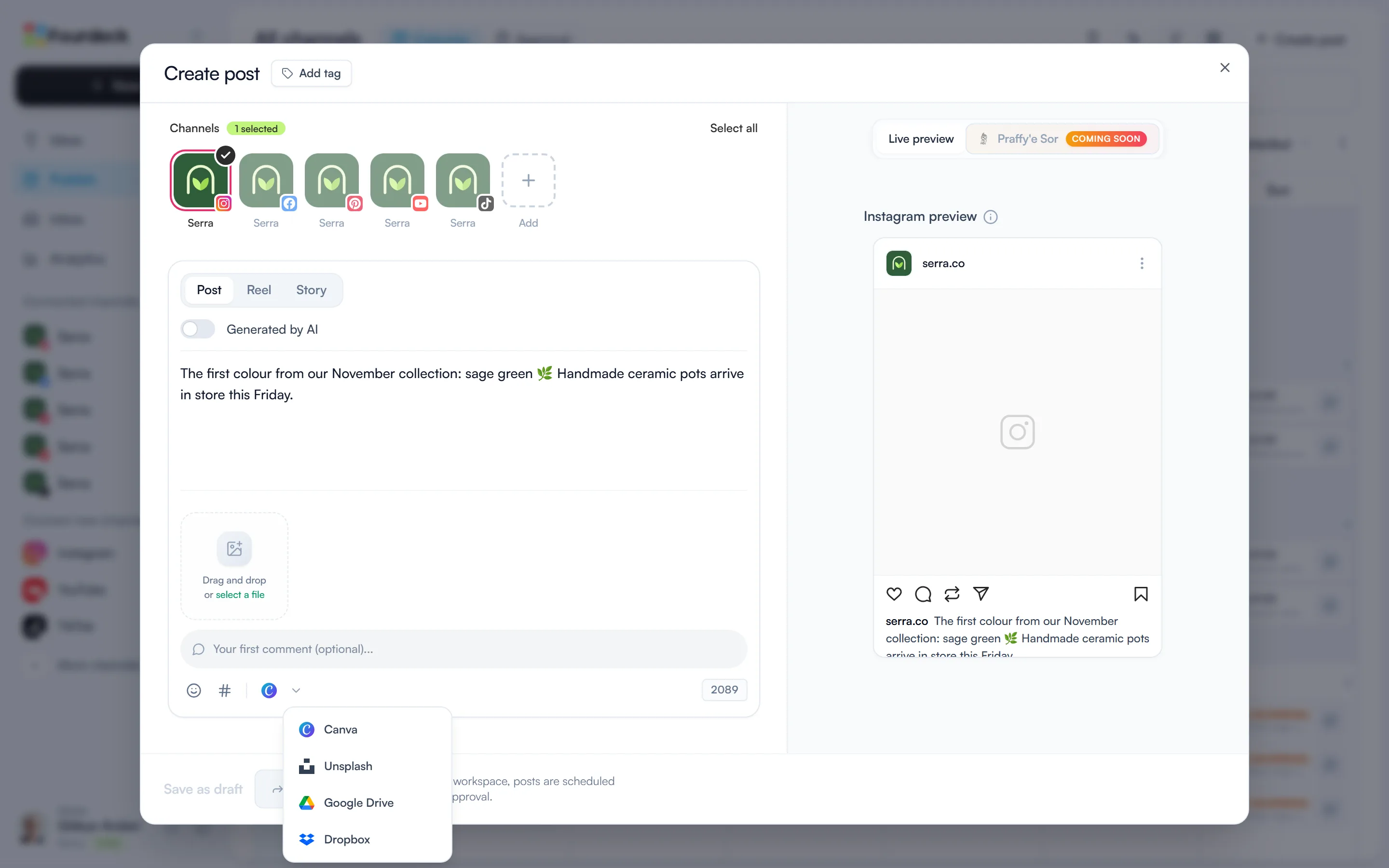
Choose Google Drive in the post window
Open “Create post”, click the small arrow next to the media tool in the toolbar and choose Google Drive.
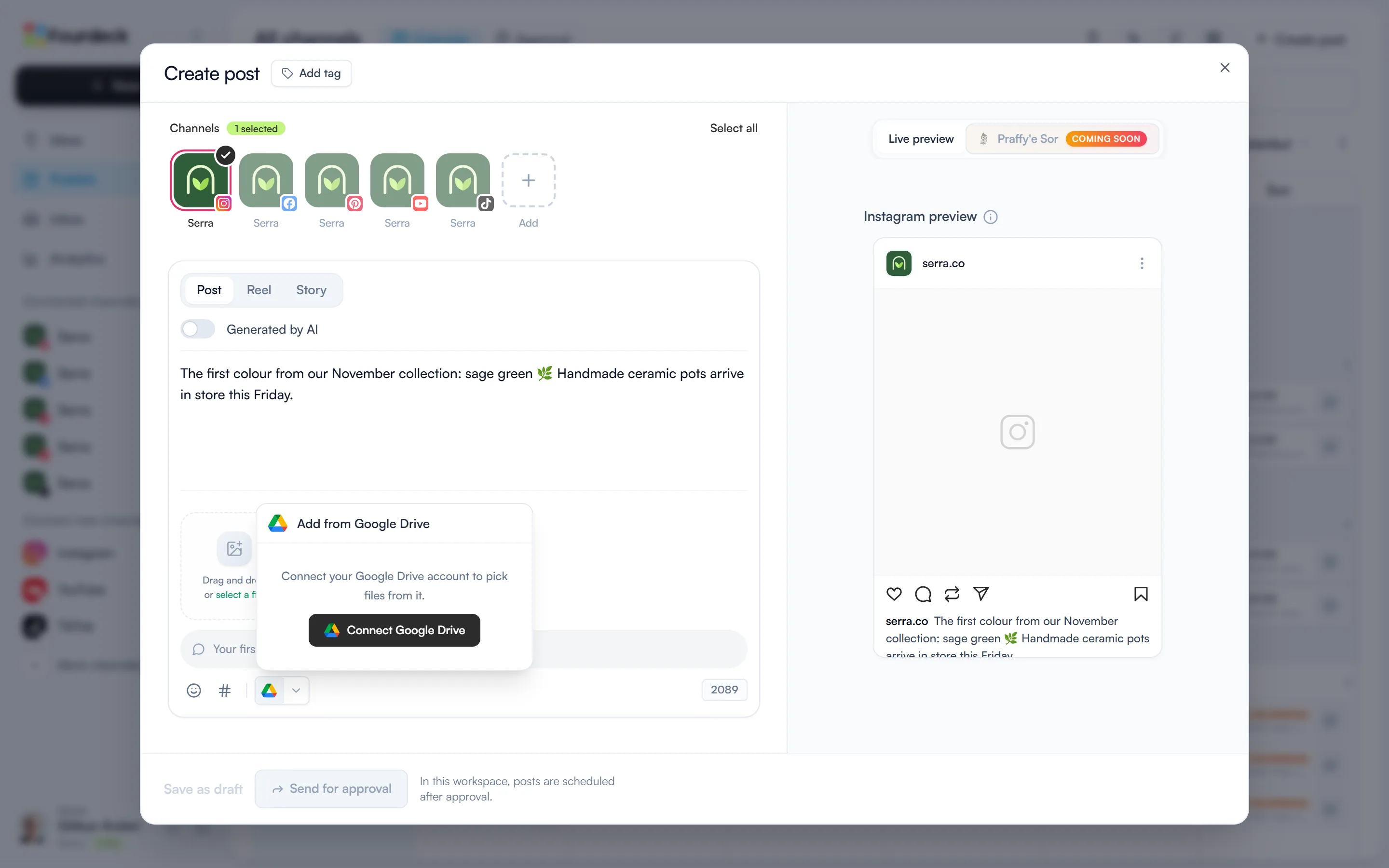
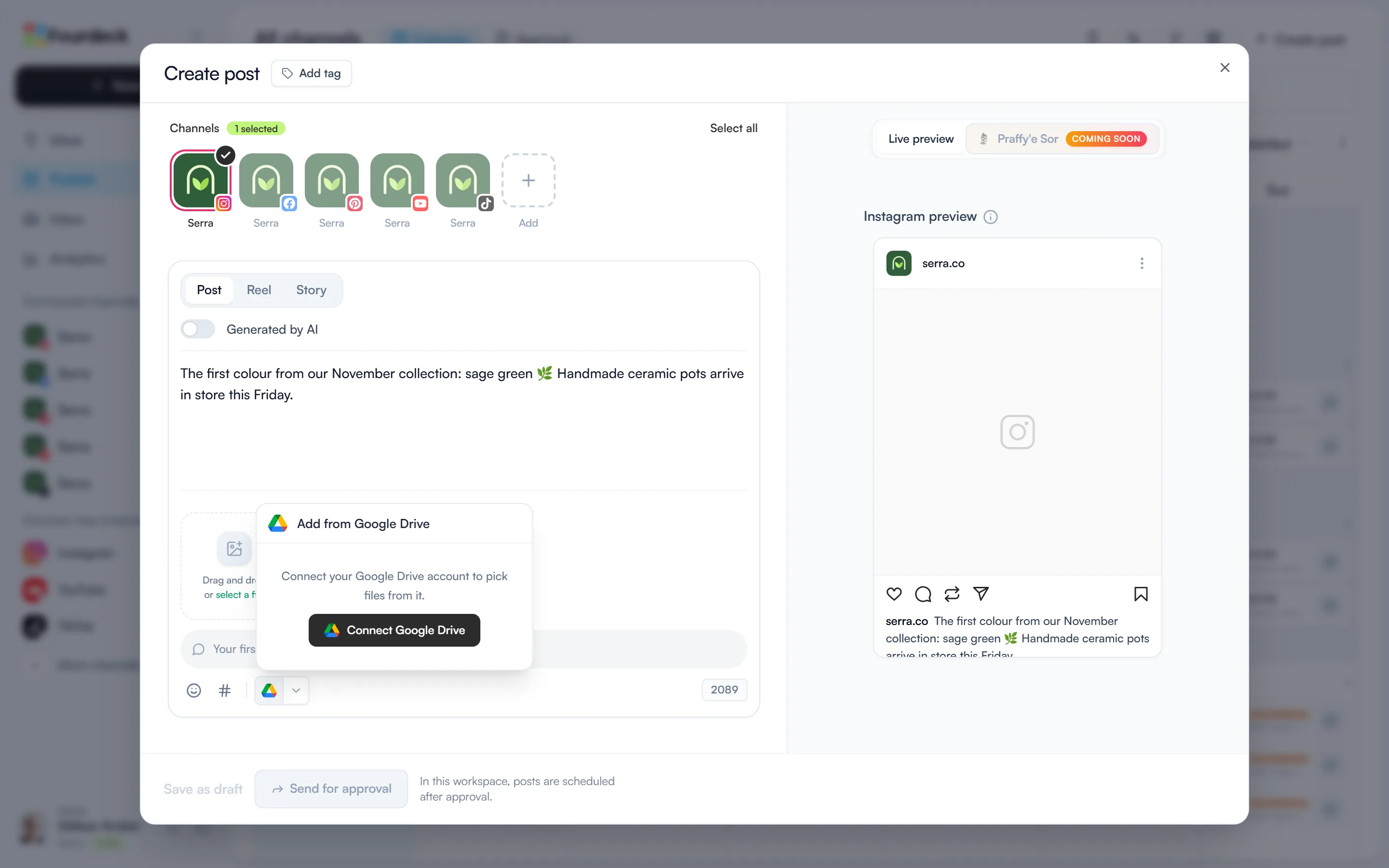
Connect your Drive account
Select “Connect Google Drive”, choose your account in the Google window and allow access. Make sure the Google Drive box is ticked.
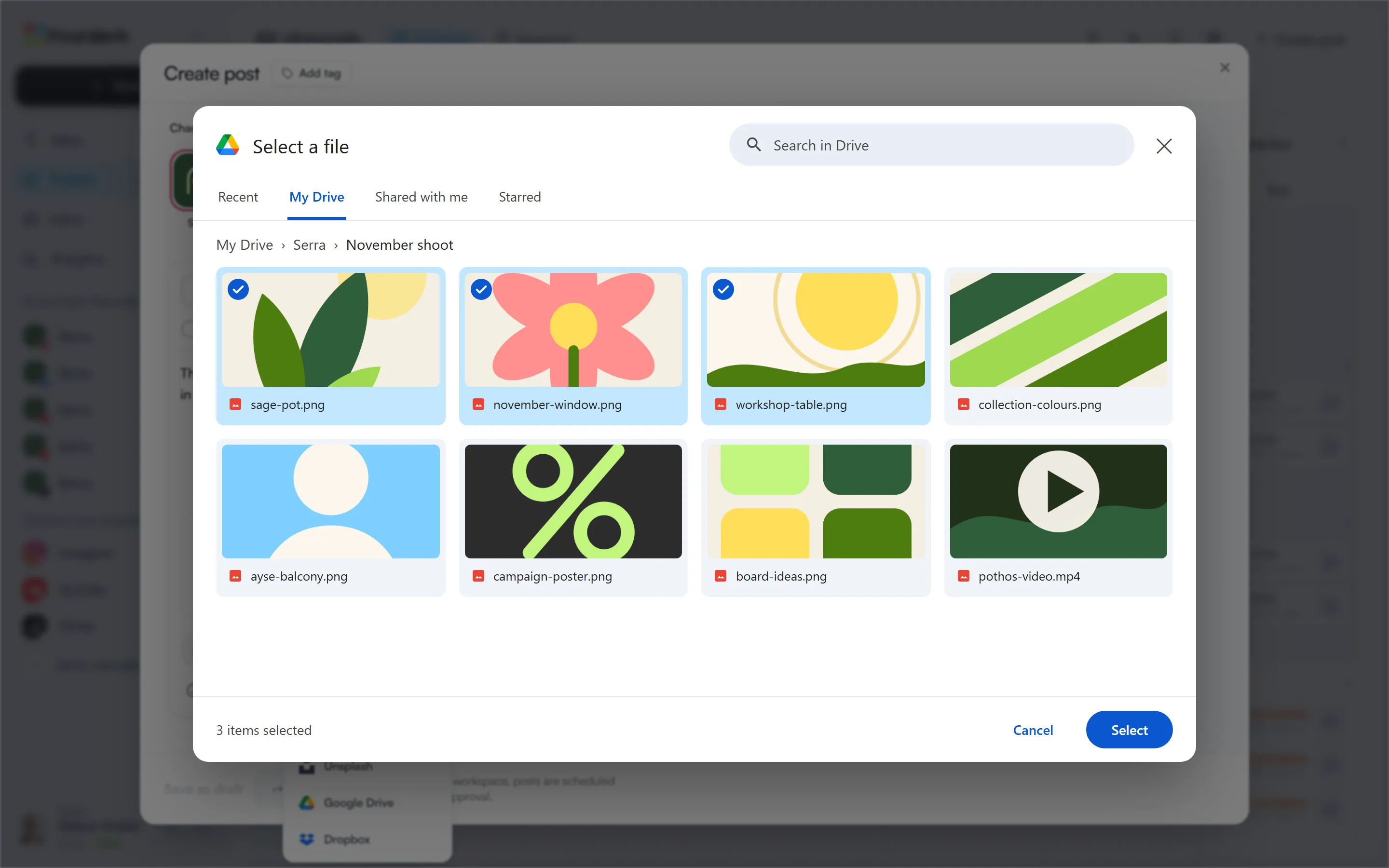
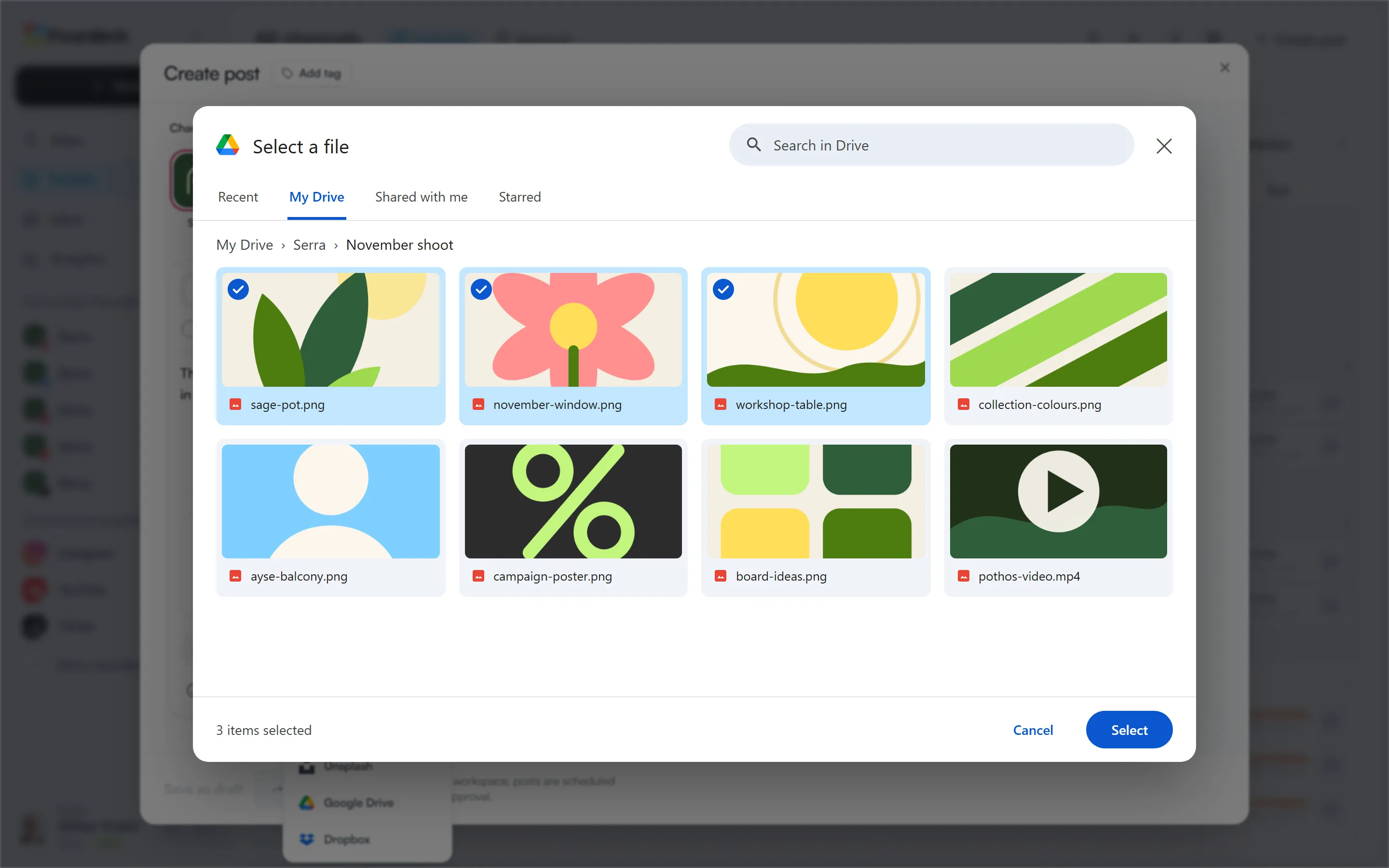
Pick the file
Google's file picker opens by itself. Select a PNG, JPEG, WebP, MP4, MOV or PDF file and it's added to the post.
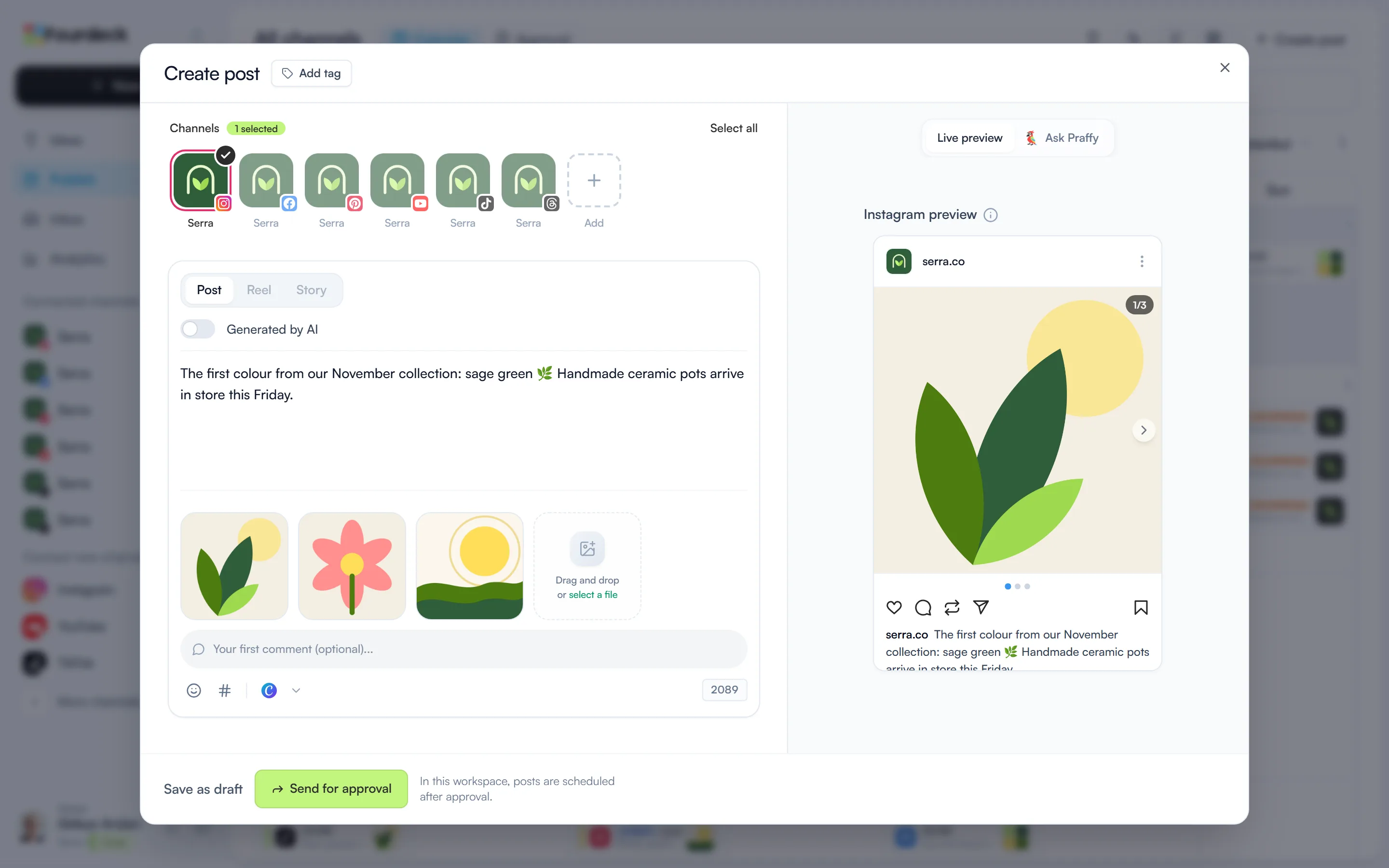
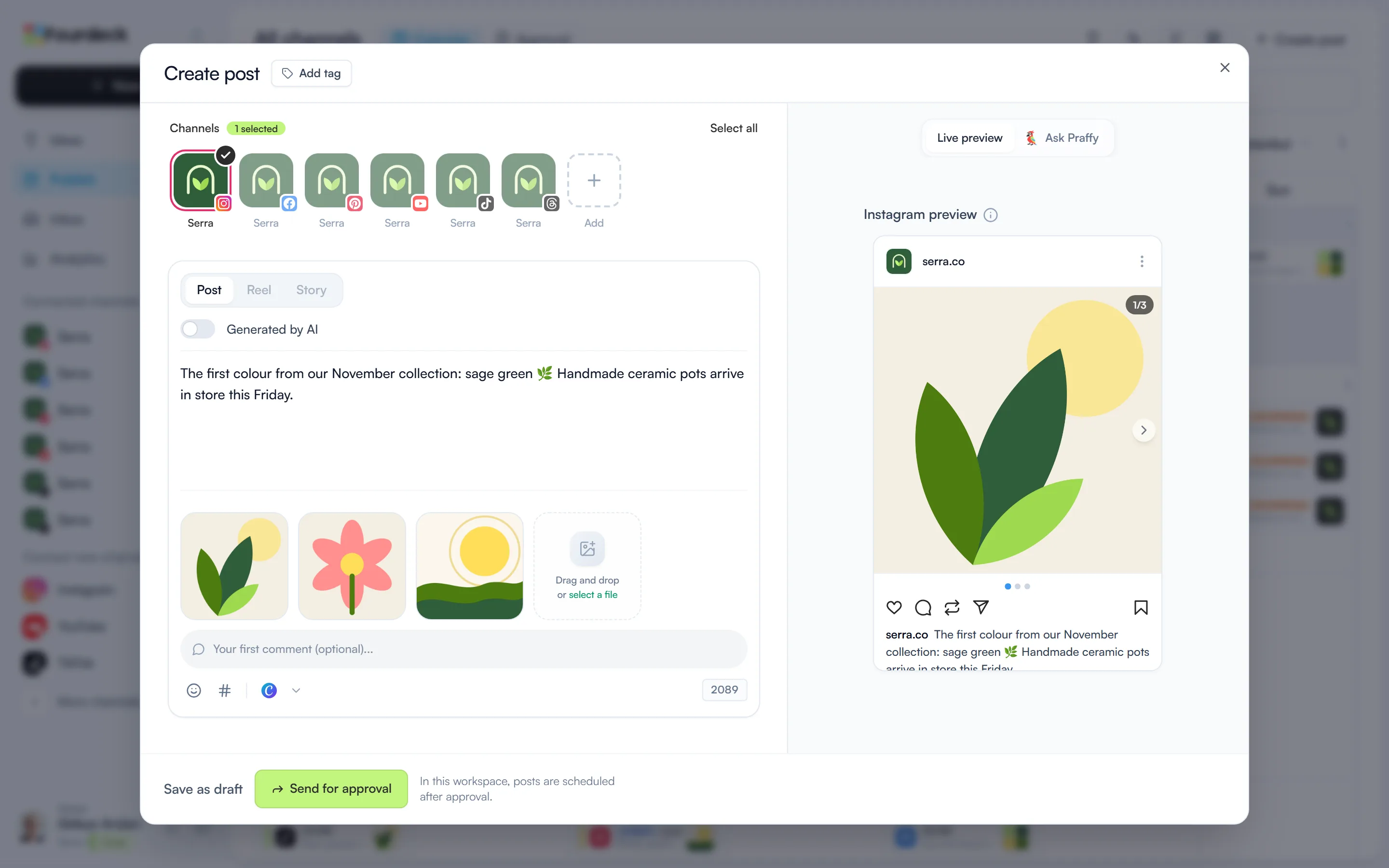
Illustrative screen The files are in your post
The files you picked are added to the post's media, and the preview shows straight away how the post will look.
What you can do
- Add images, videos and PDFs from Drive straight into a post.
- Browse your folders in Google's own file picker.
- Fourdeck only accesses the file you pick, not the rest of your Drive.
Frequently asked questions
Can Fourdeck see my whole Drive?
No. You pick the file in Google's picker and Fourdeck can only access that file.
Which plans include it?
Every plan, including Free.